
Why Your Default Wi-Fi Network Name Changes After a Firmware Update
Later firmware shortens the default wireless network names so smartphones can display them fully and distinguish the 2.4GHz and 5GHz networks. You can identify the new SSIDs from the router’s LAN MAC address or view them on its management page.
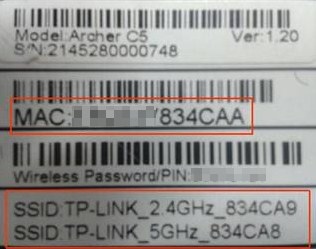
Why the default SSID changed
Earlier firmware used default network names such as “TP-Link_2.4GHz_130918” and “TP-Link_5GHz_130917”. Some smartphones could not display these SSIDs in full, making the 2.4GHz and 5GHz networks difficult to distinguish. Later firmware shortens the default names to address this problem.
How to find the new wireless network name (SSID)
Use the LAN MAC address on the router’s rear label.
The Archer C5 label below provides an example.
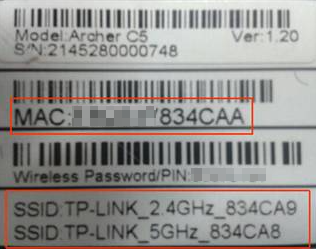
Its LAN MAC address is “XX-XX-XX-83-4C-AA”; the final digit, A, represents 10. The default SSIDs change as follows:
Band Original default SSID New default SSID 2.4GHz TP-Link_2.4GHz_834CA9 TP-Link_4CAA 5GHz TP-Link_5GHz_834CA8 TP-Link_4CA9_5G The new 2.4GHz name uses the last four digits of the MAC address. The new 5GHz name uses those four digits minus 1, followed by “_5G”.
Log in to the router’s management page. If you need login instructions, refer to [FAQ ID: 87]. Click Wireless 2.4GHz/5GHz to view the new SSID.

Handpicked News
Accessing Your TP-Link DSL Modem Router at tplinkmodem.net or 192.168.1.1
Six ways to improve TP-Link Wi-Fi through router and antenna placement
How to restore access to your router's admin page
Updating Your Router’s Firmware: When to Do It and How
How to Turn Wi-Fi Router SSID Broadcasting On or Off
Stay ahead of the story
Get one weekly email with the best of RouterSetup Desk.

