
Updating Your Router’s Firmware: When to Do It and How
Router firmware updates can improve features, correct software errors, and address security issues. This guide explains how to find the right update, access your router’s settings, and install the firmware through its web interface.
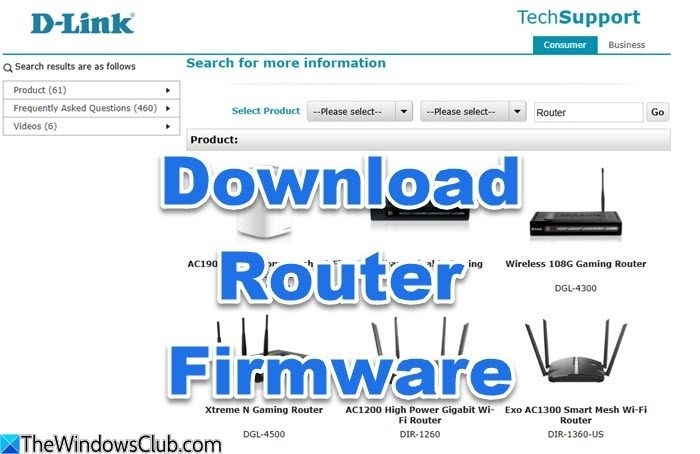
Firmware is the software built into your router that controls how it performs its tasks. Updating it involves flashing a newer version onto the device.
When should you update router firmware?
Install new firmware when it becomes available: it may offer better features, resolve security issues in earlier versions, and fix software errors. Reduced internet speed, poor modem performance, or security notifications are also reasons to check for updates. If a router problem persists after a reset, updating its firmware is the recommended next step.
Check for updates regularly. Firmware downloads usually include a list of improvements, which you can review before deciding whether to install them.
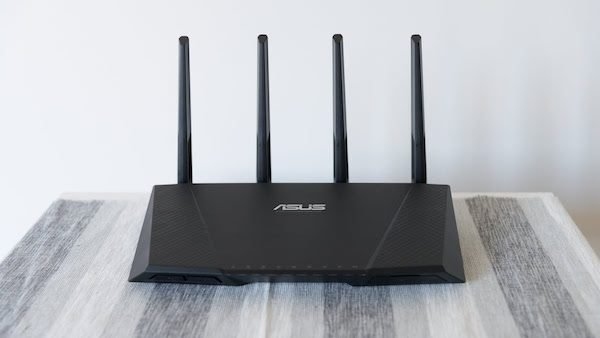
Prepare for the update
Some routers, including Google and Binatone models, update automatically. Others require you to flash the firmware through the router’s web interface.
You need a computer and an active internet connection. An Ethernet connection is recommended because it makes the process easier, faster, and safer. If Ethernet is unavailable, you can use Wi-Fi, provided the computer and router are on the same Wi-Fi network. Updating over Wi-Fi takes longer, and the connection must remain active throughout the process.
Sign in to the router
- Open a web browser.
- Enter 192.168.1.1 in the address bar. If the router login page does not appear, consult the router’s support manual for an address such as “routerlogin.net”. Login information may also be printed on a sticker on the back or underside of the router.
- Find the router’s username and password. Try these default combinations, using lowercase characters:
- Username: admin; password: password
- Username: admin; password: admin
- Username: password; password: password
- Username: admin; password: 1234
- Username: admin; password: 0000
If none of these combinations works, reset the router and try again. Locate its reset button, which may sit inside a small hole near the power switch. If necessary, insert a pin into the hole to reach it. Hold the button for five to 10 seconds to restore the default configuration, then retry the credentials above.
Caution: Resetting restores all router settings to their defaults. Proceed only if you know how to configure the router.
Find and download the firmware
- Locate and note your router’s model number. It may be printed on the casing or on a sticker on the back or underside.
- Open the manufacturer’s website. For NetGear, for example, enter https://www.netgear.com.
- Go to the support area, usually labeled “SUPPORT”.
- Enter the model number in the support search bar and press Enter.
- Find the Downloads section, check for the latest firmware version, and save it to a secure location on your computer.
Manufacturer support locations include:
- ASUS: asus.com
- Linksys: firmware support
- NetGear: firmware support
- TP-Link: firmware support
- D-Link: firmware support
- ARRIS: arris.com/support/softwarefirmware
Install the firmware through the web interface
- Return to the browser tab containing the router’s login interface.
- Look for “Upgrade”, “Admin”, or “Firmware”. The menu name may differ, but the relevant page should provide “BROWSE TO FILE”, a text box, and an “UPDATE” button.
- Click “BROWSE”, locate the downloaded firmware file, select it, and click “OPEN”. Then click “UPGRADE”.
- Allow time for installation. The duration depends on the connection between your computer and router.
The router reboots when the update finishes.
Manual updates for NETGEAR routers
Visit the NETGEAR Download Center, enter your router model, and search for the latest firmware. Download the file, sign in to the router’s admin panel, open the Firmware Update section, and select the downloaded file.
Using a phone
You can also update router firmware from a phone. Install and open the IPConfig app while connected to the router you want to update. Its front page lists the router’s IP address under DNS. ASUS also provides a dedicated app.
Handpicked News
Accessing Your TP-Link DSL Modem Router at tplinkmodem.net or 192.168.1.1
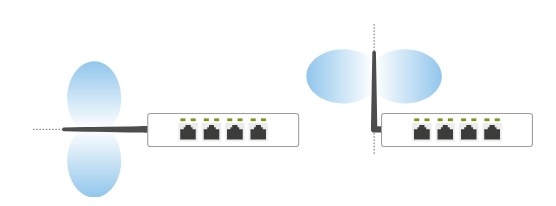
Six ways to improve TP-Link Wi-Fi through router and antenna placement
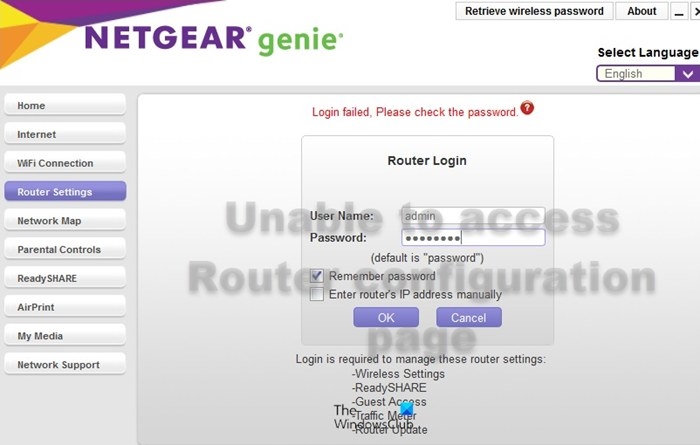
How to restore access to your router's admin page
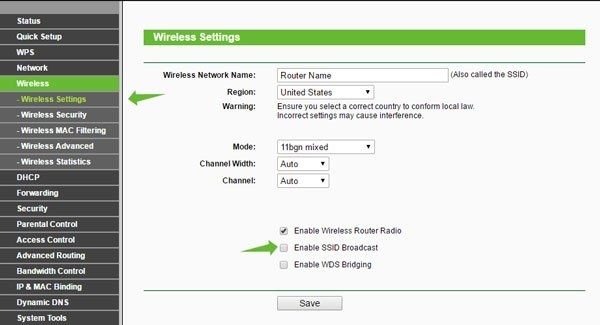
How to Turn Wi-Fi Router SSID Broadcasting On or Off
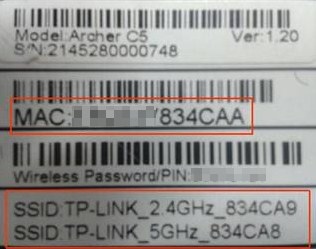
Why Your Default Wi-Fi Network Name Changes After a Firmware Update
Stay ahead of the story
Get one weekly email with the best of RouterSetup Desk.

