
Accessing Your TP-Link DSL Modem Router at tplinkmodem.net or 192.168.1.1
Open your TP-Link DSL modem router’s management interface through a local Ethernet or Wi-Fi connection, without internet access. Follow the login steps, handle certificate warnings, and choose the appropriate administrator credentials.
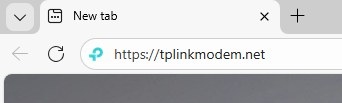
Your TP-Link DSL modem router hosts its configuration interface on an internal web server. To open it, connect locally to the router and enter tplinkmodem.net or 192.168.1.1 in a browser; internet access is not necessary.
Firefox, Chrome, and Edge are recommended. Older browsers may fail to log in or display all features. Use a wired connection when changing wireless settings or updating firmware.
Step 1. Connect to the Modem Router
- Ethernet: Run an Ethernet cable from your computer’s Ethernet port to a LAN port on the router.
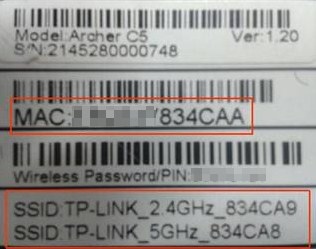
- Wi-Fi: Join the TP-Link modem router’s wireless network. If you have forgotten its password, reset the router, then connect using the default Wi-Fi name and password printed on its label.
Step 2. Open the Management Interface
Start your browser, enter https://tplinkmodem.net or 192.168.1.1 in the address bar, and press Enter.
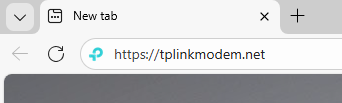
Step 3 (Optional). Continue Past the Certificate Warning
If a "Privacy Error" warning appears, choose Advanced, followed by Proceed to tplinkmodem.net (unsafe) or Proceed to 192.168.1.1 (unsafe). If no warning appears, move directly to Step 4.
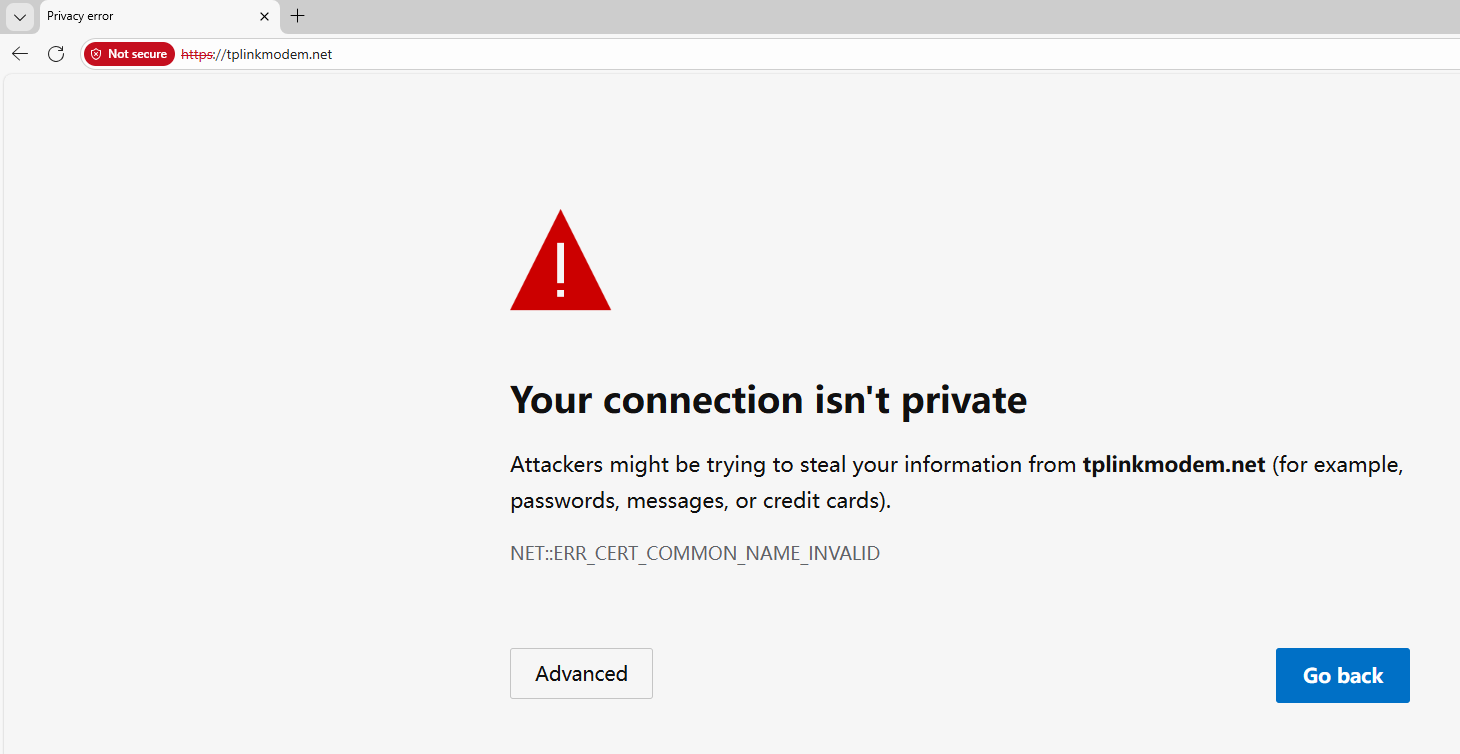
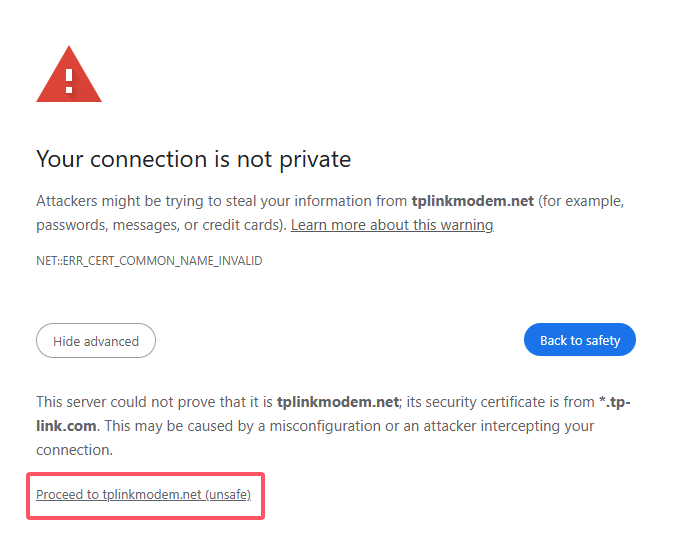
This warning occurs because tplinkmodem.net uses a self-signed certificate instead of one issued by a trusted authority. This behavior is normal, and the connection remains secure. For further explanation, consult TP-Link’s information about why some browsers identify its HTTPS web interface as unsecure.
Step 4. Create or Enter Your Login Credentials
On your first visit, create a secure administrator password. Some older models instead use "admin" as both the default username and password.
If you have already configured the device through its web interface or the Tether app, use your existing password. For a device linked to a TP-Link ID, log in with your TP-Link account credentials instead.
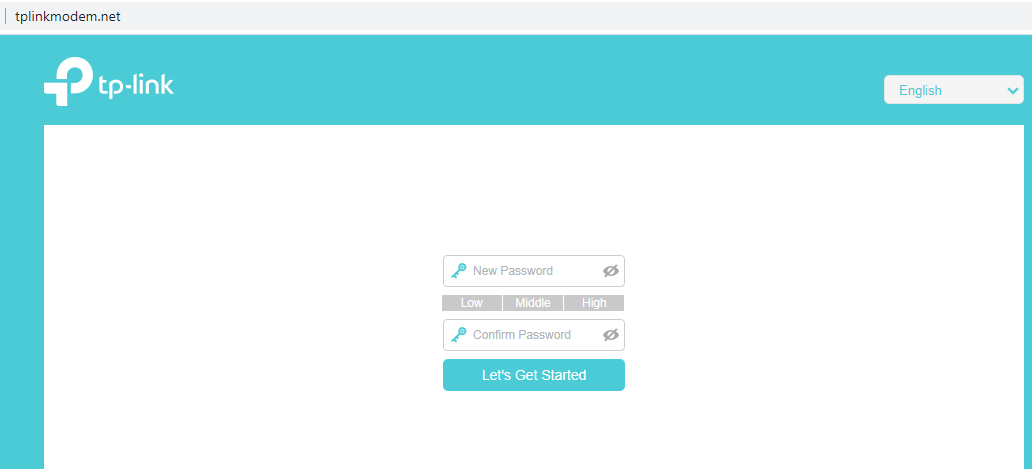
If the page will not open and you receive messages such as "no internet" or "the website can't be reached", consult TP-Link’s troubleshooting guidance for web management utility login failures.
For explanations of individual functions and settings, download your product’s manual from the Download Center.
Handpicked News
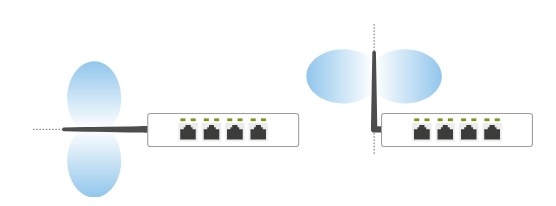
Six ways to improve TP-Link Wi-Fi through router and antenna placement
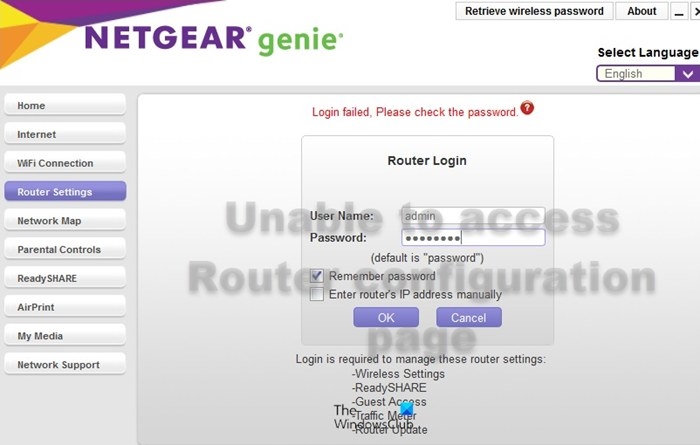
How to restore access to your router's admin page
Updating Your Router’s Firmware: When to Do It and How
How to Turn Wi-Fi Router SSID Broadcasting On or Off
Why Your Default Wi-Fi Network Name Changes After a Firmware Update
Stay ahead of the story
Get one weekly email with the best of RouterSetup Desk.

