
Customize Wi-Fi Settings on a TP-Link Extender
Use TP-Link Tether or the web management page to change your extender’s wireless settings. Available options depend on its model and whether it operates in Range Extender or Access Point mode.
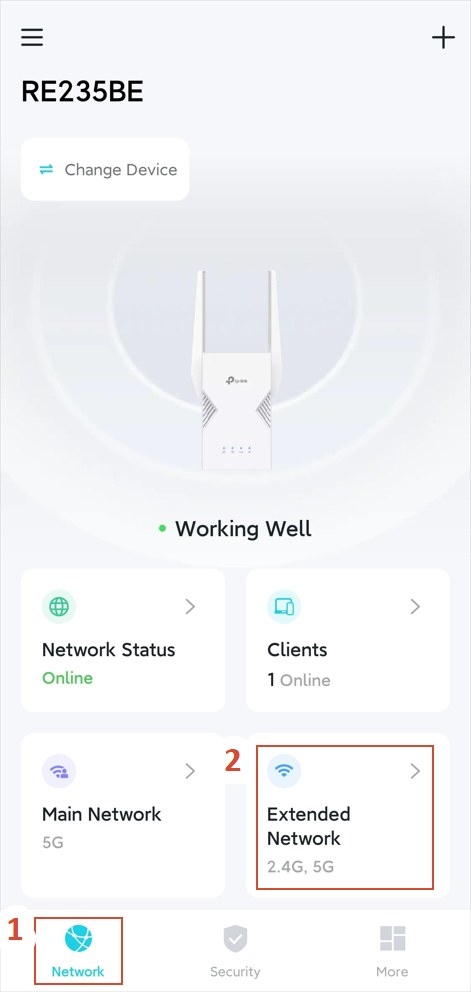
You can adjust a TP-Link extender’s wireless settings through the TP-Link Tether app or its web management page. The available controls and menu paths depend on the model and operating mode.
Available settings and limitations
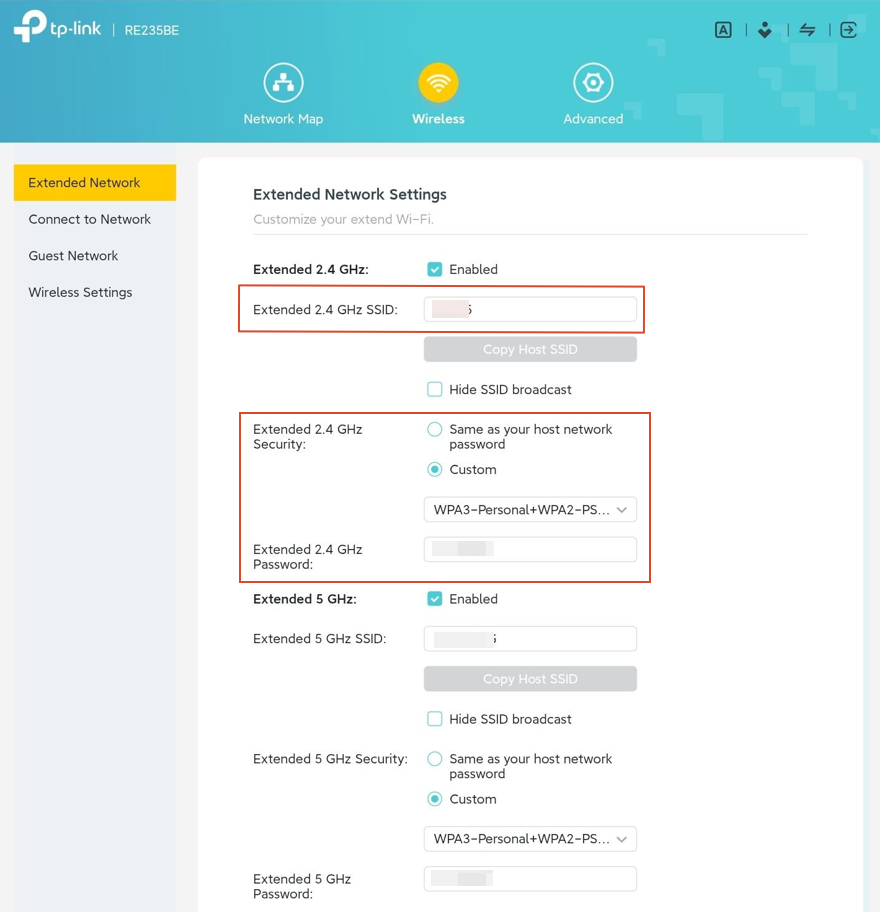
- Change the Wi-Fi name (SSID), hide the SSID, or enable and disable the 2.4GHz and 5GHz bands.
- Change the Wi-Fi password and security type/encryption where the model supports these options.
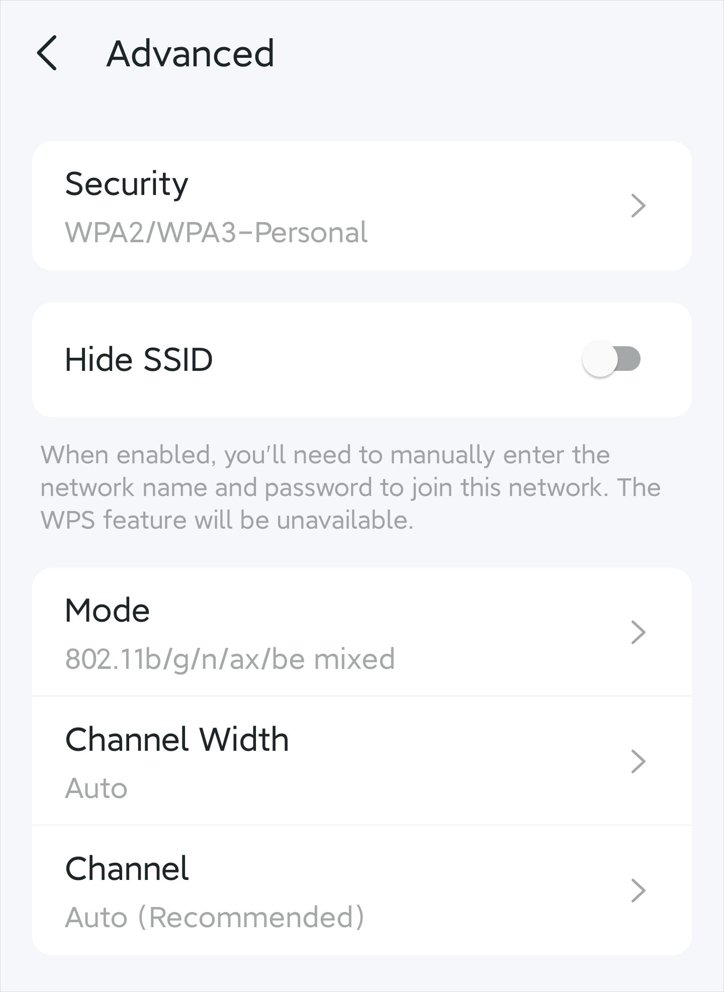
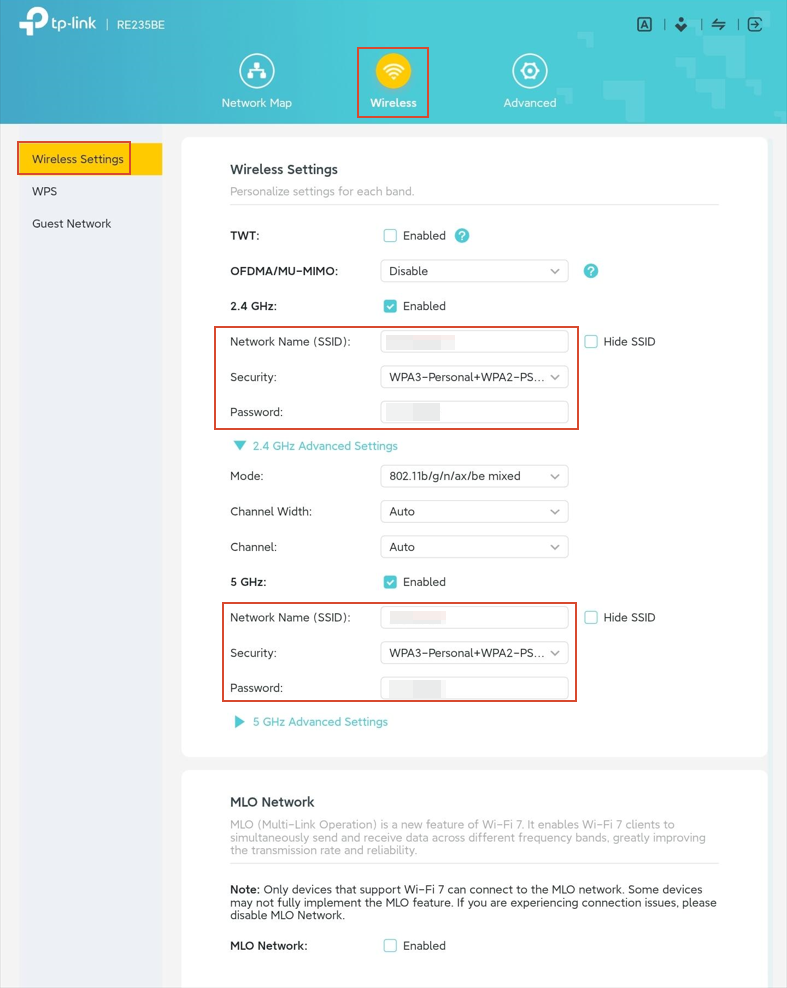
- In Access Point (AP) mode, also adjust Wireless Mode, Channel and Channel Width.
Before making changes: An extender in a OneMesh/EasyMesh network automatically synchronizes its settings with the router. Disable OneMesh/EasyMesh before customizing the extender’s Wi-Fi independently.
By default, extenders share the host router’s wireless password and security type. Some models do not support changing these in Range Extender mode; check your actual interface for availability. Models without this feature currently will receive it through future firmware updates.
Method 1: Configure Wi-Fi with TP-Link Tether
This method applies to Tether-compatible models.
Step 1: Connect and sign in
- Join the extender’s Wi-Fi network.
- Launch TP-Link Tether.
- Choose your extender under Devices and sign in.
Step 2: Update the wireless settings
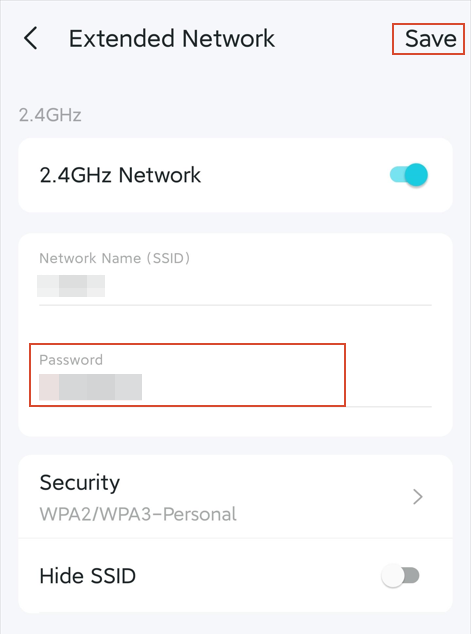
In Range Extender mode, open Network > Extended Network, make the required changes, and select Save.
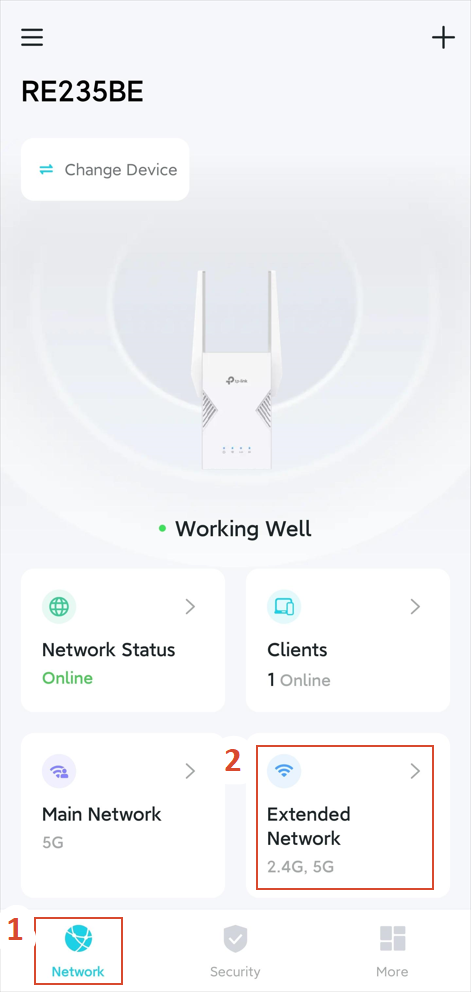
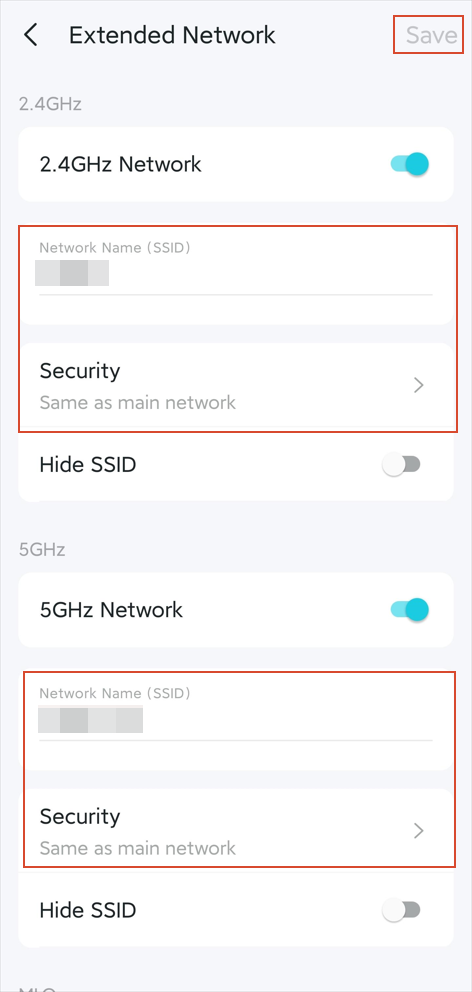
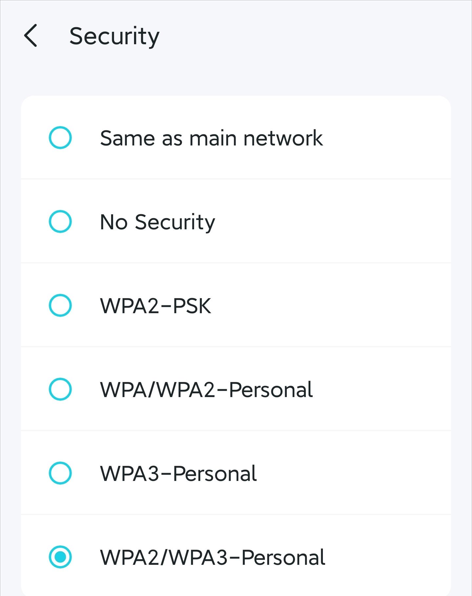
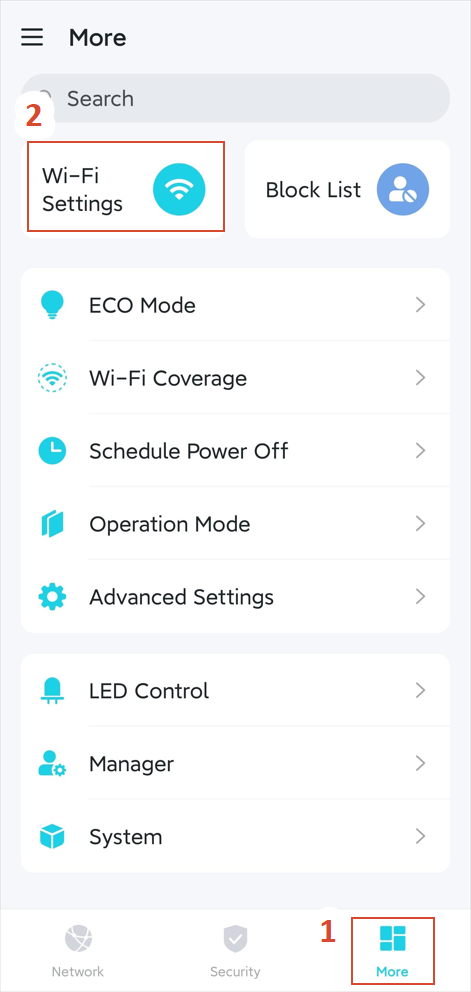
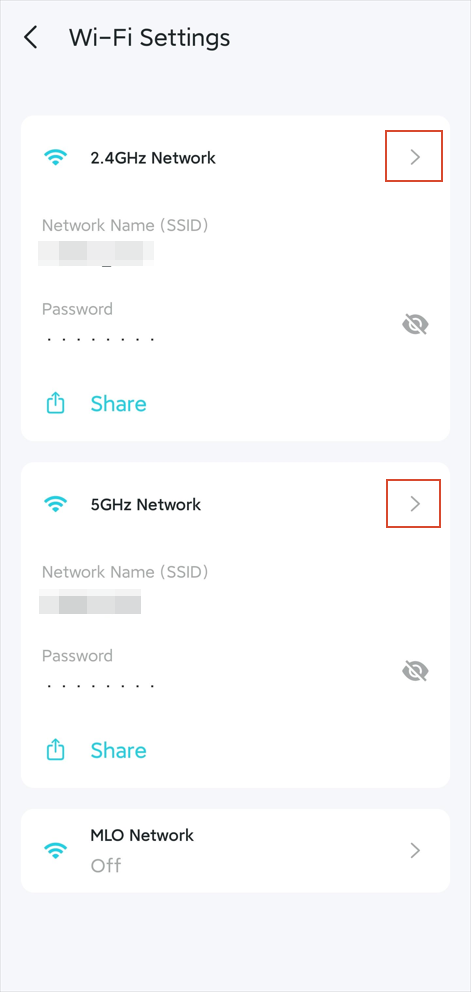
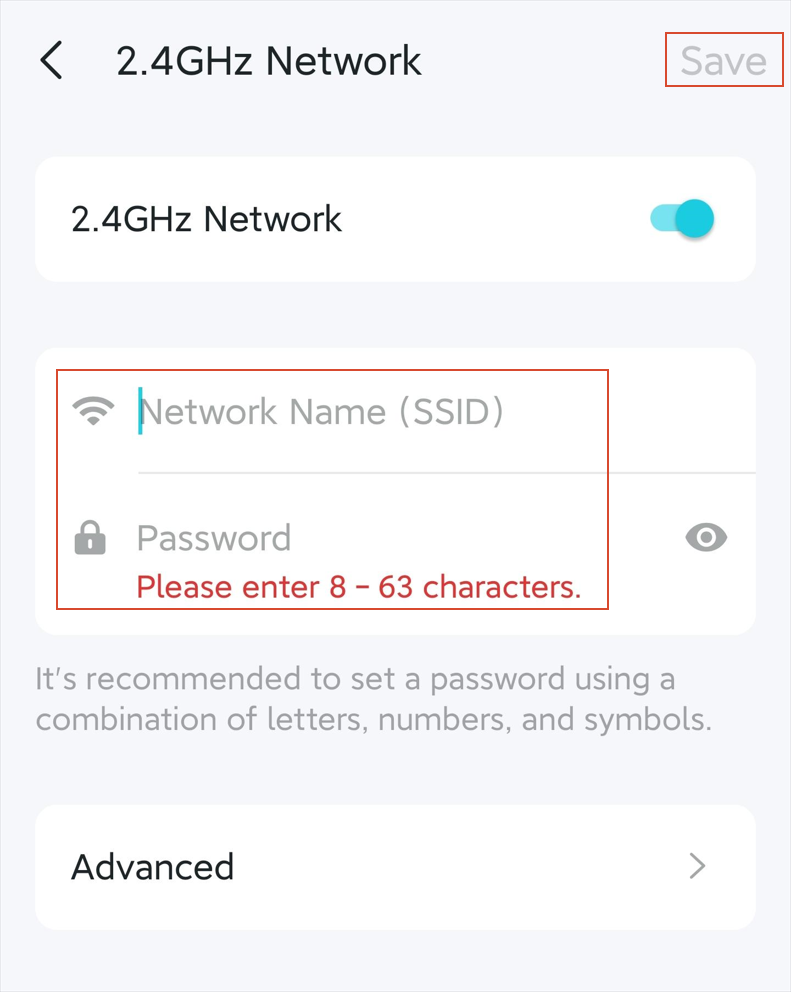
In Access Point mode, open More > Wi-Fi Settings > 2.4GHz / 5GHz Network. Adjust the settings, then select Save.
Method 2: Use the web management page
The browser method is available for all models.
Step 1: Open the management interface
- Join the extender’s Wi-Fi network.
- In a browser, go to http://tplinkrepeater.net/.
- Enter your admin password to sign in.
Step 2: Change the wireless configuration
For Range Extender mode, open Settings/Wireless > Extended Network. Update the desired settings and click Save.
For Access Point mode, open Settings/Wireless > Wireless Settings. Make your changes and click Save.
For further information about functions and configuration, obtain your product’s manual from the Download Center.
Handpicked News
Understanding WPA3-Personal, WPA3-Enterprise and Wi-Fi Security
Configure a Guest Wi-Fi Network on a TP-Link Router

Protect Your Home Wi-Fi: Router Security and Family Controls
Update Wi-Fi Names, Passwords, and Channels on TP-Link Mobile Routers
Manually Connect a TP-Link Range Extender to an Apple Router
Stay ahead of the story
Get one weekly email with the best of RouterSetup Desk.

