
Choosing a Wi-Fi Band in Windows 11 and Windows 10
Windows 11/10 can let you select or prefer the 5 GHz Wi-Fi band through Device Manager. Availability depends on your adapter, and both your computer and router must support the band.
With compatible hardware, Windows 11/10 can use either 2.4 GHz or 5 GHz Wi-Fi. If your computer supports 5 GHz and your router broadcasts on that band, switching from 2.4 GHz can improve internet speed.
Check which bands your laptop supports before changing its settings. A computer may sometimes fail to detect 5 GHz and connect through 2.4 GHz instead; when 5 GHz is available, you may be able to force or prefer it.
Check Your Adapter’s Band Settings
Device Manager lists connected hardware and provides band-selection settings for some Wi-Fi adapters. These controls depend on the adapter or component: even a 5 GHz-capable adapter may not offer them. Open the settings below to find out whether yours supports forcing a band.
Set the Preferred Wi-Fi Band
- Use Win+X to display the menu, then choose Device Manager.
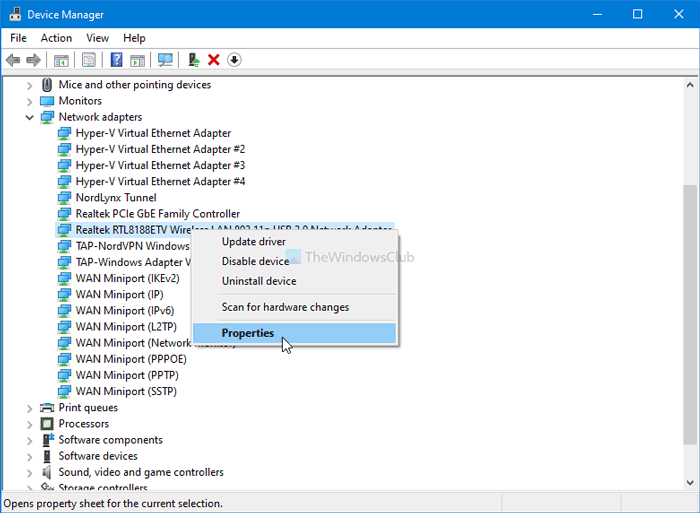
- Expand Network Adapters. Right-click the Wi-Fi adapter in use and open Properties.
- Open the Advanced tab and select Band or Preferred Band. The manufacturer may use a different name for this setting.
- Open the Value drop-down list on the right and choose 5 GHz only or Prefer 5 GHz band.
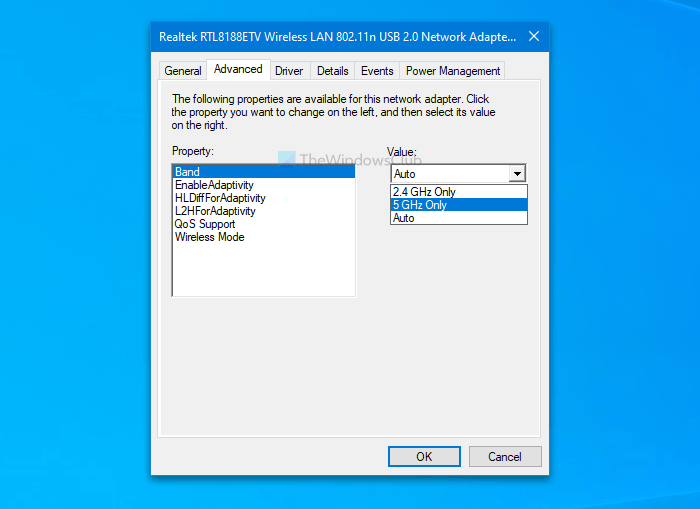
- Save your selection by clicking OK.
Handpicked News
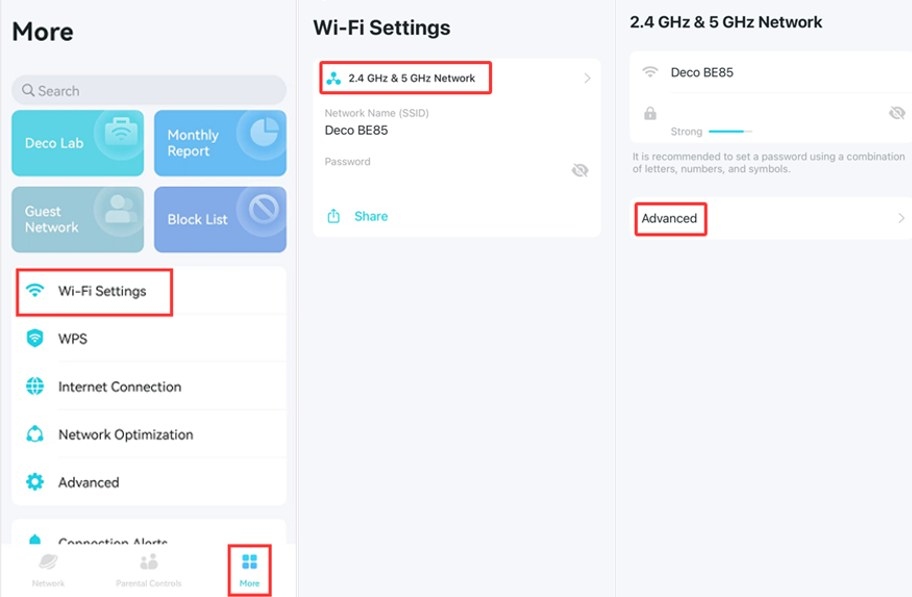
Adjust TP-Link Deco Wi-Fi Channels and Channel Width in the App

Wi-Fi 8 and Wi-Fi 7 Compared: Reliability, Speed, and Upgrade Timing

WiFi 6 and WiFi 6E: What the 6 GHz Extension Changes
Wi-Fi 5 or Wi-Fi 6: Understanding the Upgrade—and Where Wi-Fi 7 Fits

WiFi 7 Compared with WiFi 6: Bandwidth, Modulation, and Link Improvements
Stay ahead of the story
Get one weekly email with the best of RouterSetup Desk.

