
Fix Default Wi-Fi Connection Problems During Deco or ISP Mesh Setup
Follow these ordered checks if your phone cannot join the default Wi-Fi while setting up a main Deco or ISP-customized mesh controller. Reset timing and troubleshooting steps differ between the two device types.
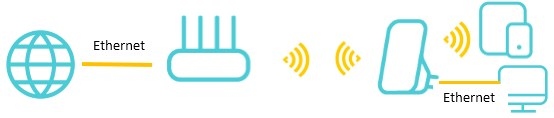
In an Easymesh network containing two or more routers, the router connected to the internet source is the controller; the others are agents. Use the following checks if you cannot join the default Wi-Fi when setting up the main Deco or an ISP-customized mesh controller.
Deco: Troubleshoot the Main Unit
Unplug the other Deco units in the package, leaving only the main Deco powered on.
- Check for a pulsing blue LED. If it is not pulsing blue, hold the reset pinhole for 1s, then wait for 2 minutes as the LED changes from solid yellow to pulsing blue.
- Switch the phone's Wi-Fi/WLAN off, then on again.
- Restart the phone, or use another phone if available.
- Choose another Deco to serve as the main Deco.
ISP-Customized Mesh: Troubleshoot the Controller
Unplug the remaining mesh devices in the package and power on only the controller device.
- Verify that the LED is pulsing blue. Otherwise, hold the reset pinhole for 5s until the LED pulses yellow. Wait for 2 minutes until it turns blue and begins pulsing.
- Bring the phone closer to the controller.
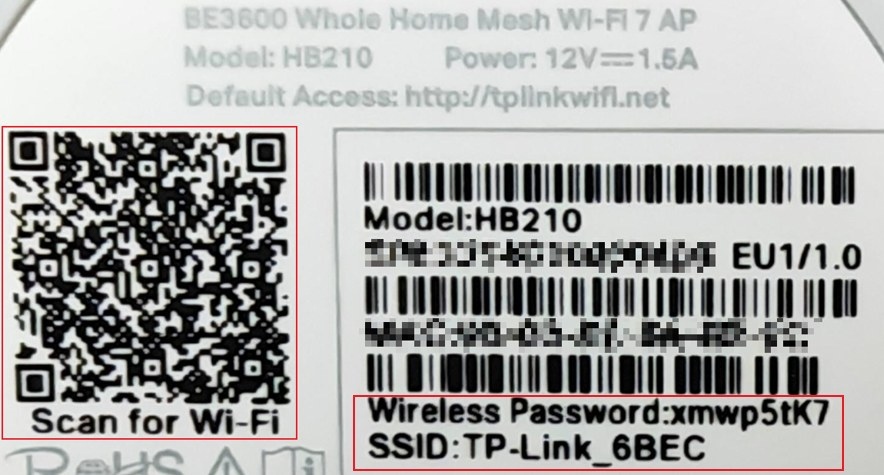
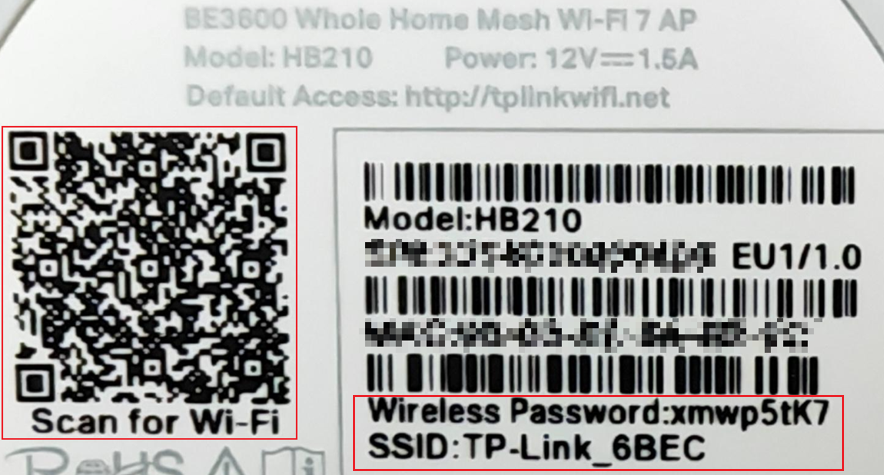
- Join the default Wi-Fi using the SSID and Wireless Password printed on the router's bottom label, or scan its QR code.
The HB210 label is shown as an example:
- Switch the phone's Wi-Fi/WLAN off and back on.
- Restart the phone, or try another phone if possible.
- Use another mesh device as the controller.
Handpicked News
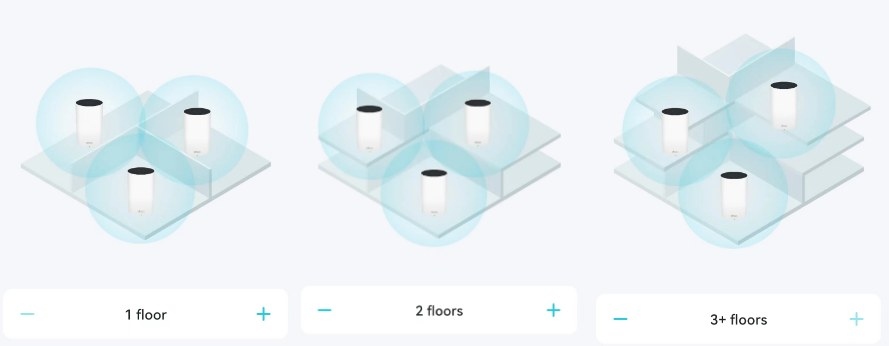
Where to Position Deco Units for Reliable Mesh Wi-Fi
Deco placement affects both whole-home coverage and the wireless connection between units. Use the app’s layout guidance, check satellite signal strength, and avoid obstructions and interference; Ethernet backhaul is another option in wired homes.
Choosing a TP-Link Wi-Fi Upgrade: Extender, Powerline, or Mesh
Compare TP-Link range extenders, powerline adapters, and mesh systems for improving home coverage. The best fit depends on your layout, electrical wiring, existing equipment, and network needs.
TP-Link Deco Explained: How Whole-Home Mesh Wi-Fi Works
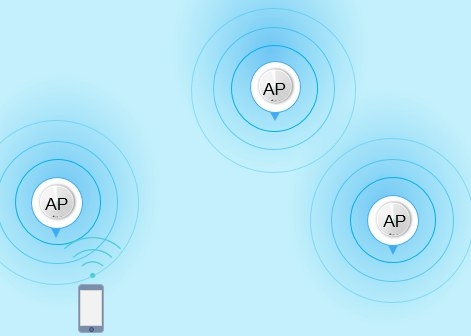
TP-Link Deco uses multiple nodes to create a single home Wi-Fi network. Its features include seamless roaming, adaptive path selection, band steering, self-healing, and AI-driven network adjustments.
Set Up Ethernet Backhaul Between Two TP-Link EasyMesh Routers
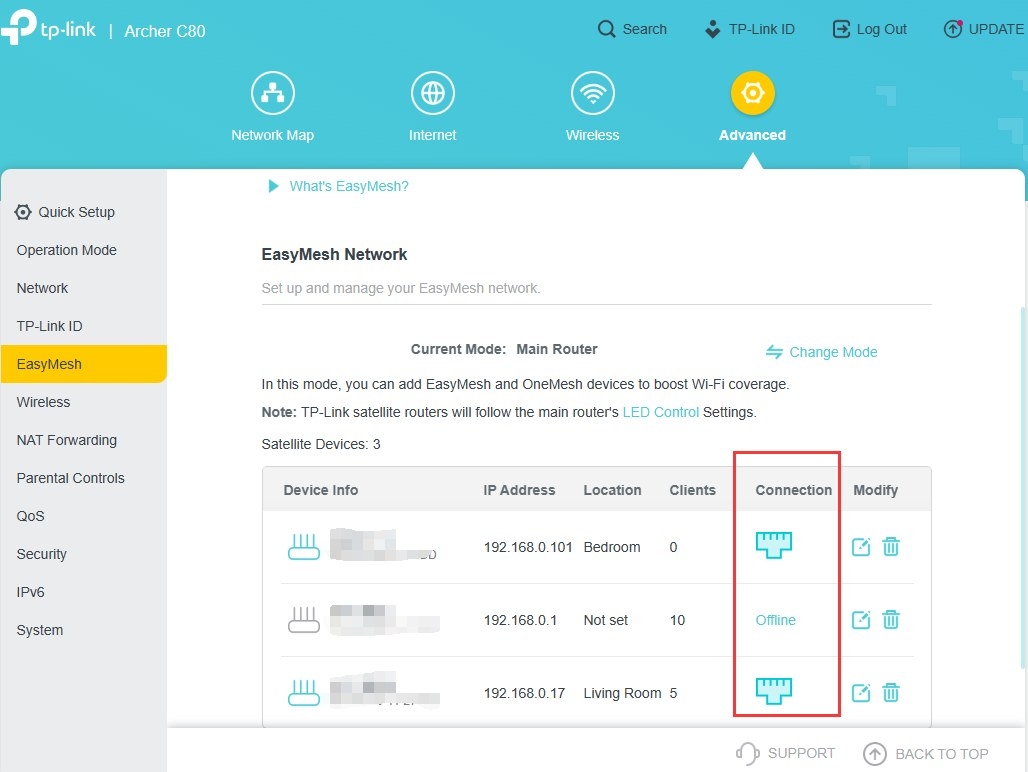
Connect compatible TP-Link EasyMesh routers by Ethernet to replace wireless backhaul or add a new satellite. The setup differs for an existing satellite and a factory-default router, and the EasyMesh page shows whether the wired connection is active.
EasyMesh Explained: How It Compares with OneMesh and Closed Mesh Systems
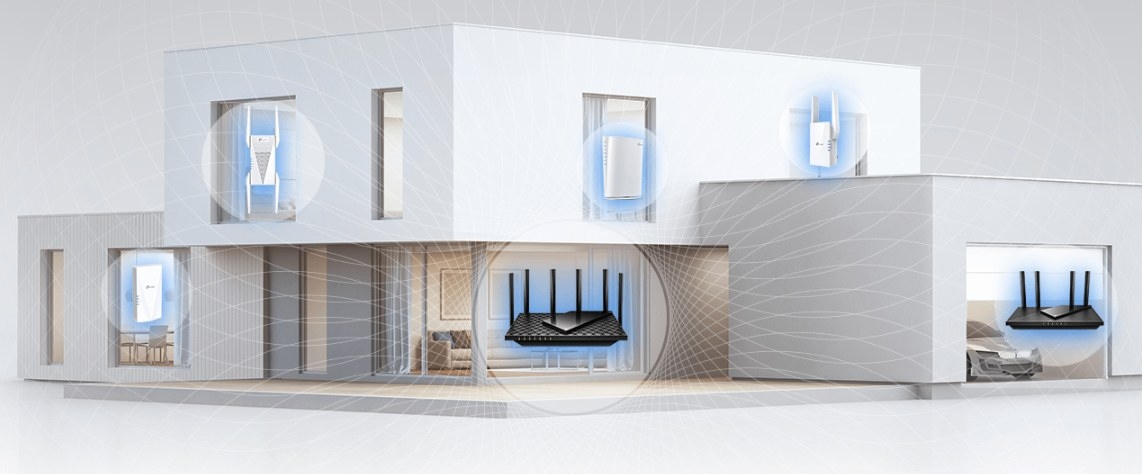
EasyMesh allows certified networking devices from different brands to form one mesh network, unlike proprietary systems. It offers expansion flexibility, although same-brand configurations generally provide more consistent performance.
Stay ahead of the story
Get one weekly email with the best of RouterSetup Desk.

