
Manually Connect a TP-Link Range Extender to an Apple Router
The Apple router utility’s printer-specific WPS feature cannot set up a range extender correctly. If the RE light stays off after a WPS attempt, use the extender’s web interface to configure the connection manually.
On Apple routers such as Airport Extreme, the Utility option Add WPS Printer gives a range extender the same SSID but a random wireless password. Apple designed this feature for printers, so it cannot configure a range extender through the WPS button.
If the RE light does not illuminate after you attempt the connection, follow this manual setup procedure.
Connect to the Extender and Sign In
For the most direct access to the web interface, connect your Mac to the extender’s Ethernet port using the supplied Ethernet cable. Once connected, disconnect the computer from any wireless network. This disconnection applies only to laptops or desktop PCs with wireless capability.
If your Mac can connect only wirelessly, open its wireless network list and select TP-LinkXXXX, where the X’s vary. Enter the password printed on the back of the device when prompted.
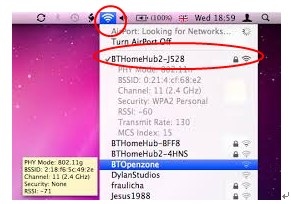
The following example shows where to find wireless networks on a Mac.
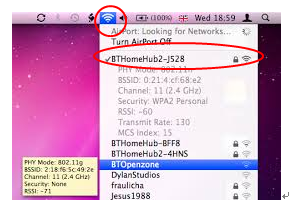
The computer will not have internet access during this process. Its direct connection to the extender nevertheless allows access to the web management page.
With the Mac connected to the extender, open a browser and enter tplinkrepeater.net or 192.168.0.254 in the address bar. If tplinkrepeater.net does not open the login page, clear the address bar and try 192.168.0.254, the extender’s default IP address. Both addresses lead to the same login window.
At the login window, use admin for both the username and password.
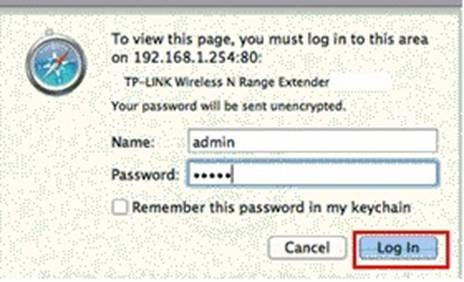
On a Mac, this login window will appear immediately after a direct Ethernet connection to the extender is established.
After signing in, complete the configuration below.
Choose Next in the middle of the web management page.
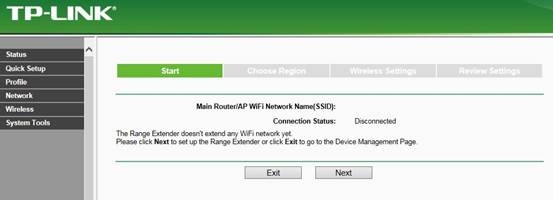
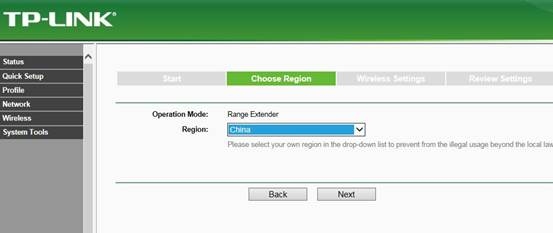
Select your region.
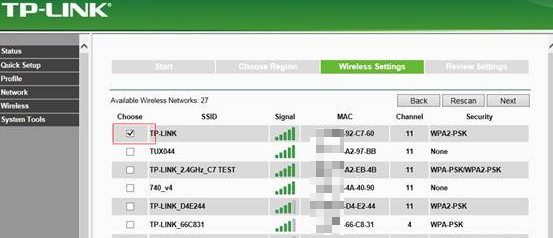
Select your wireless network.
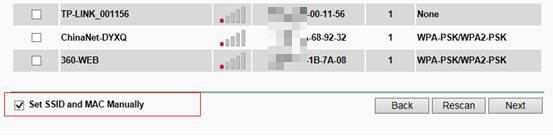
If the main router’s network name is hidden or SSID broadcast is disabled, choose Set SSID and MAC Manually.
In the manual-entry window, enter every required value to match your wireless network settings.
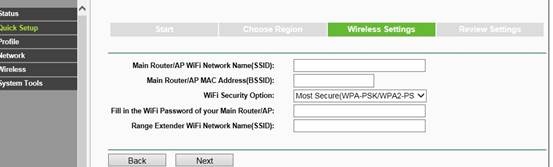
Enter your wireless network’s exact password.
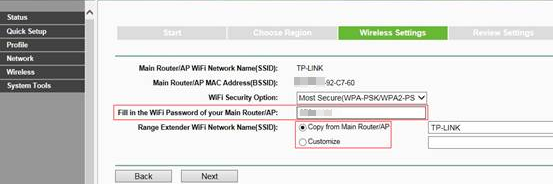
In the same window, select Copy from Main Router/AP to make the extender broadcast your existing network name, or Customize to enter a different name. The recommended choice is Copy from Main Router/AP. Then select NEXT.
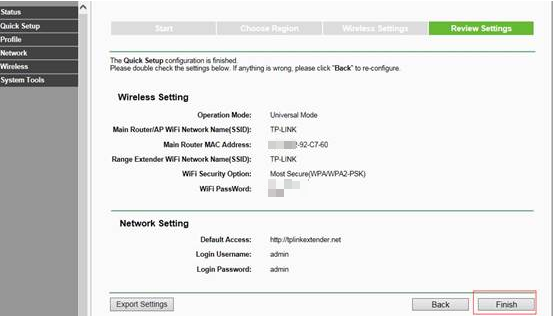
Check that the settings are correct, then select FINISH. The extender will restart to apply them; allow up to 2 minutes.
Confirm the Connection
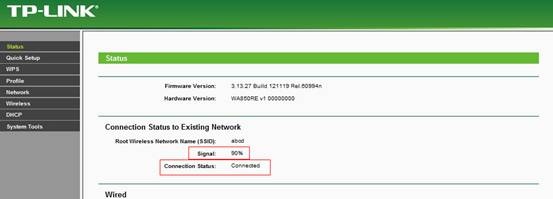
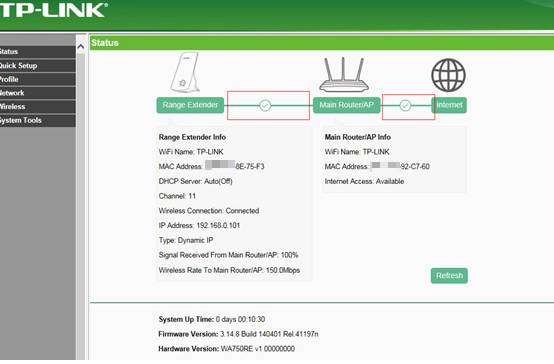
A successful setup turns on the RE light and Wi-Fi signal lights. Depending on the interface version, you will also see one of the following:
A connected status and a signal-strength reading.
A checkmark between Range extender and Main router/AP. If both devices have internet access, another checkmark appears between main router/ap and internet.
Handpicked News
Understanding WPA3-Personal, WPA3-Enterprise and Wi-Fi Security
Customize Wi-Fi Settings on a TP-Link Extender
Configure a Guest Wi-Fi Network on a TP-Link Router

Protect Your Home Wi-Fi: Router Security and Family Controls
Update Wi-Fi Names, Passwords, and Channels on TP-Link Mobile Routers
Stay ahead of the story
Get one weekly email with the best of RouterSetup Desk.

