
Update Wi-Fi Names, Passwords, and Channels on TP-Link Mobile Routers
TP-Link Mobile Wi-Fi settings can be changed through apps or the web interface, with different options for 3G/4G and 5G models. This guide covers those procedures and explains the available wireless settings.
You can change a TP-Link Mobile Wi-Fi Router’s network name, password, and channel using the management options supported by your model. These include tpMiFi, Tether, and the web interface at http://tplinkmifi.net.
For 3G/4G models, tpMiFi changes the SSID and password, while advanced options require the web interface at http://tplinkmifi.net. For 5G models, use the device screen, Tether, or the web interface.
Change Settings on a 3G/4G Mobile Wi-Fi Router
Using tpMiFi
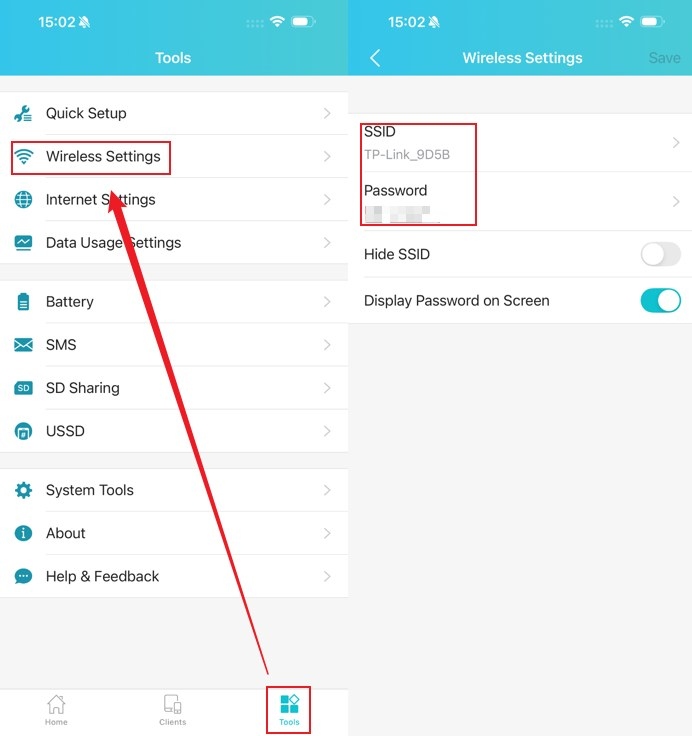
- Connect your phone to the router’s Wi-Fi, open tpMiFi, and select the Mobile router under My Devices. Open Tools > Wireless Settings to see the current SSID and password.
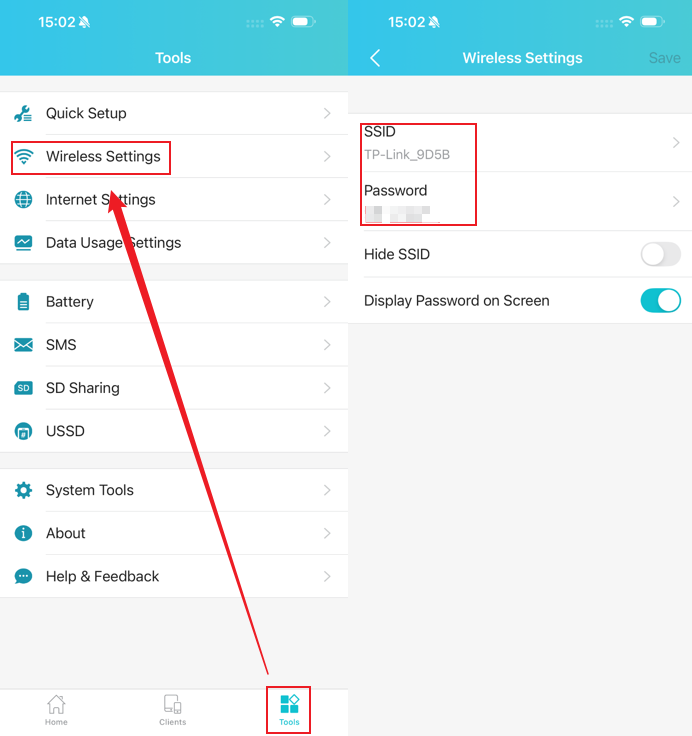
- Select the SSID or Password field, enter the replacement name or password, and tap Save.
For advanced changes, including channel selection, use the web interface instead.
Using the Web Interface
- Connect your computer to the router’s network and browse to http://tplinkmifi.net.
- Open Advanced > Wireless > Basic Settings, adjust the required options, and select Save.
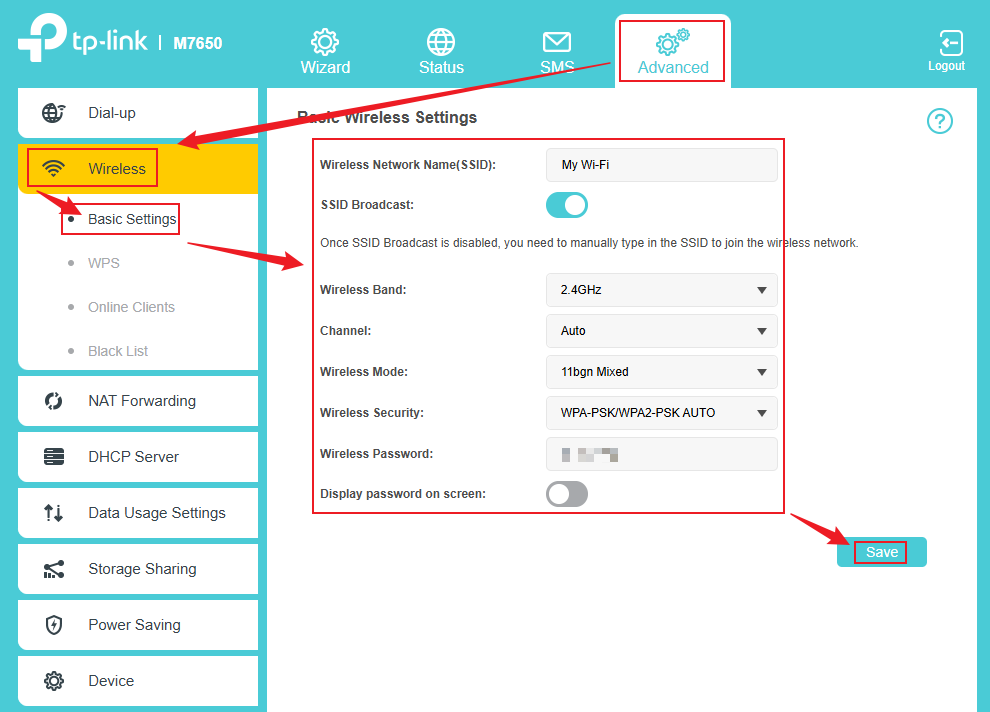
Except for the SSID and password, the default wireless settings are configured for optimal security and performance. Change them only when a specific need requires it. Available options differ slightly by model, so use your device’s interface as the reference.
Change Settings on a 5G Mobile Wi-Fi Router
Using the Router’s Screen
On the device screen, select Settings to access Wireless SSID (Network Name), Password, and other advanced settings. Make your changes, then select Save. For more detailed options, use the web interface described below.
Using Tether
- Connect your phone to the 5G router’s Wi-Fi and launch the Tether app.
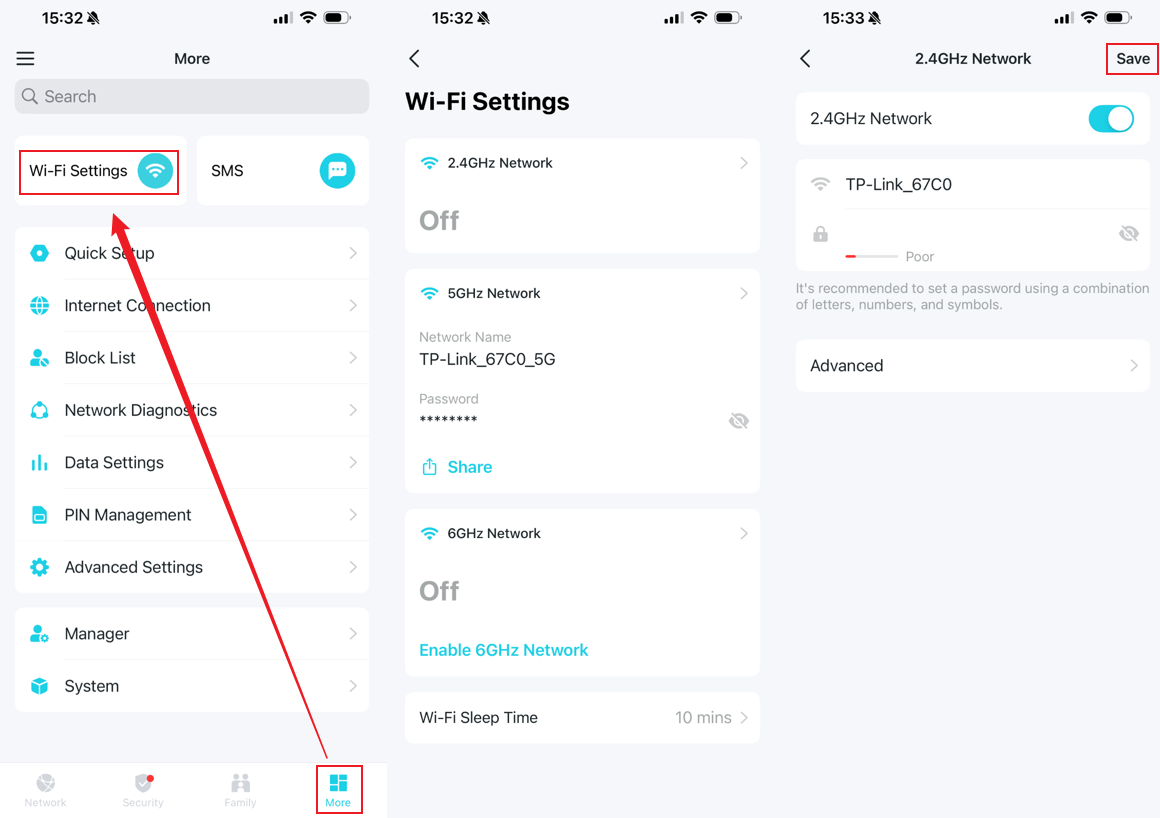
- Select the Mobile router under My Devices, then open More > Wi-Fi Settings. Channel selection is available on the Advanced page.
Using the Web Interface
- Connect your computer to the router’s network and open http://tplinkmifi.net in a browser.
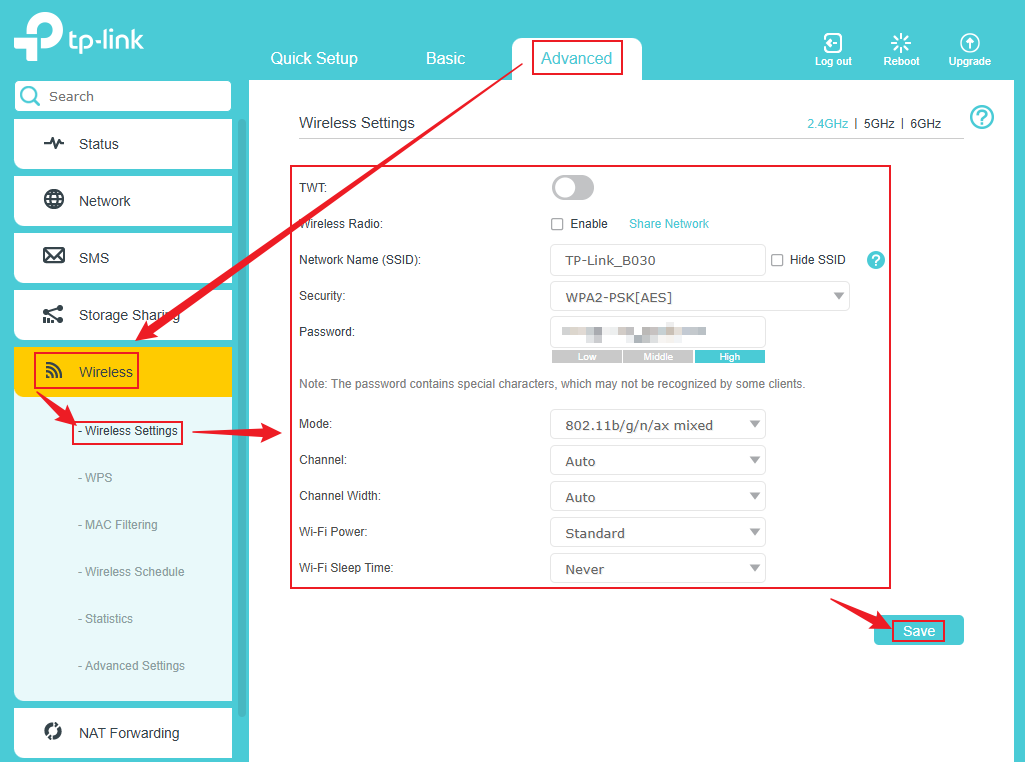
- Log in, then open Advanced > Wireless > Wireless Settings. Adjust the available options and select Save to apply them.
Understanding the Wireless Options
TWT
Target Wake Time lets 802.11ax routers and clients agree on when to transmit and receive packets. Clients wake during TWT sessions and sleep between them, substantially extending battery life.
Wireless Network Name (SSID)
The SSID identifies your wireless network. The default is TP-Link_XXXX, with XXXX representing the last four characters of the device’s MAC address. A custom name can contain up to 32 case-sensitive characters and appears in the available-network list.
Wireless Band: 2.4GHz | 5GHz | 6GHz
Select 2.4 GHz, 5 GHz, or 6 GHz to adjust that band’s settings. Supported bands depend on the model.
Wireless Radio
Select this checkbox to enable the wireless network.
Wireless Mode
This setting determines the band’s Wi-Fi protocol. For broad compatibility, use 11bgn mixed on 2.4 GHz or 11a/n/ac mixed on 5 GHz. Alternatively, choose a specific mode, such as 11n only, to match your wireless adapter for optimal performance.
Wireless Security
Security Mode offers Unsecured, an open network, or WPA-PSK/WPA2-PSK, which uses a pre-shared password for strong encryption. The latter is recommended for most homes and small offices.
Channel Width
Choose the wireless bandwidth, or use Auto if you are unsure.
Channel
Wireless Channel determines the frequency used within a Wi-Fi band. Auto, recommended for most users, lets the router select the clearest channel. Choose one manually only if nearby networks cause interference.
Wi-Fi Power
Select Balanced, Standard, or Boost for transmit power. Standard is both the default and recommended choice. Changing Power Saving Mode also changes Wi-Fi Power.
Wi-Fi Sleep Time
Wi-Fi turns off automatically after a specified period without an associated client. Pressing the switch turns it back on.
For further details about functions and configuration, download your product’s manual from the Download Center.
Handpicked News
Understanding WPA3-Personal, WPA3-Enterprise and Wi-Fi Security
Customize Wi-Fi Settings on a TP-Link Extender
Configure a Guest Wi-Fi Network on a TP-Link Router

Protect Your Home Wi-Fi: Router Security and Family Controls
Manually Connect a TP-Link Range Extender to an Apple Router
Stay ahead of the story
Get one weekly email with the best of RouterSetup Desk.

