
Protect Your Home Wi-Fi: Router Security and Family Controls
Home network protection involves router passwords, firmware updates, wireless encryption, and controls for connected devices. Learn how to assess security features, manage family internet use, and understand the protections offered by TP-Link Deco and HomeCare™.
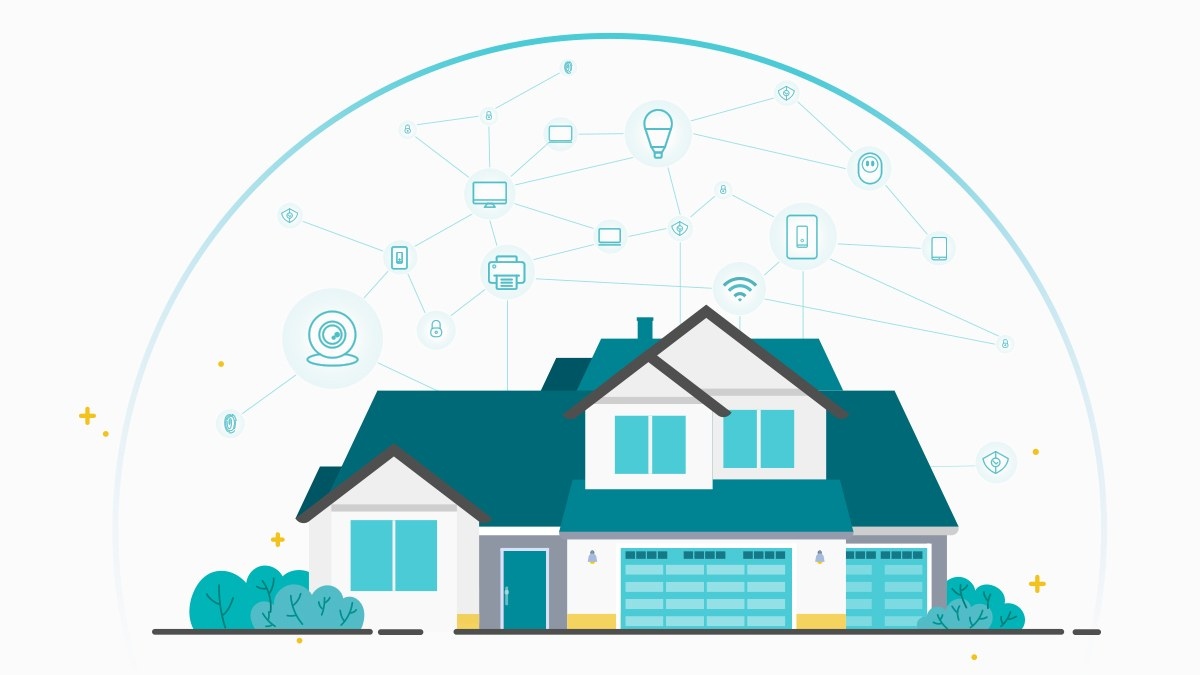
Protecting home Wi-Fi takes more than a password. Streaming, shopping, gaming, and remote work all pass data through your home network, including identities, passwords, addresses, and private photos. Threats such as phishing and malware can expose or damage that information, making network security important for the whole family.
Strengthen Your Router’s Security
Your router handles traffic between connected home devices and the internet, making it a key defense against outside attacks. The following changes can make it harder for hackers or malware to gain access.
Replace Default Passwords
Set unique passwords for both Wi-Fi and the router’s administrator account. Default credentials are publicly known and routinely tried by attackers. Change your passwords regularly as well.
Keep Firmware Current
Router firmware is the embedded control software that establishes basic security and governs which devices may connect. New releases include fixes for bugs and recently discovered vulnerabilities. A router with automatic updates is preferable, provided that feature is enabled.
Separate Visitors with a Guest Network
If supported, create a guest network so visitors can use the internet without access to private data on your home LAN. For additional protection, consider hiding your home Wi-Fi’s SSID, allowing only trusted devices onto the main network, and checking periodically for unfamiliar connections.
Turn Off WPS and UPnP
A pair button or WPS button makes adding devices easier by removing the need to enter a password, but attackers can exploit this convenience. UPnP (Universal Plug and Play) similarly simplifies connections among devices such as routers and smart TVs, yet some malware targets it to enter home networks. If security is a priority, disabling both is safer.
Choose a Router with Suitable Security Features
Look for WPA3 Support
Nearly all home routers use WPA-PSK/WPA2-PSK encryption. WPA3, introduced by WiFi Alliance as the latest Wi-Fi security protocol, strengthens password encryption and protection against brute-force attacks. WPA2-AES remains reasonably robust if WPA3 is unavailable, but a router limited to the outdated WEP (Wired Equivalent Privacy) protocol should be considered for replacement.
Consider Built-in Security and Antivirus
Many routers include security services and antivirus functions to help prevent intrusions, improve privacy and data protection, and address network vulnerabilities. Such features can simplify security management. Add-on safe box products are another option if you prefer to keep your current router.
Check App-Based Management
Manufacturers increasingly offer apps instead of relying on cumbersome browser interfaces. A dedicated app with security functions can continuously monitor the network, alert your phone or tablet to incidents, show who is accessing devices, and let you manage network access remotely from your phone.
Support Safer Internet Use at Home
Good digital habits complement technical protection. Parental controls can assign individual family profiles, restrict activities and sites, and manage time online according to age.
Manage Children’s Online Time
Increasing screen use can reduce physical activity and raise the risk of obesity and internet addiction. Daily limits, schedules, and device curfews can help children build healthier habits.
Filter Inappropriate or Malicious Content
Routers with comprehensive parental controls can use the manufacturer’s filter library to block harmful content. They may also let you restrict URLs containing particular keywords or apps with specified age ratings.
Add Protection for IoT Devices
Smart cameras offer reassurance when you are away, but unauthorized access can expose your family to surveillance. IoT devices can have multiple vulnerabilities to outside intrusion and need extra protection. A high-end router with an IoT protection service may cost more, but can be worthwhile for households seeking smart-home convenience without compromising network security.
Network Management with TP-Link Deco
TP-Link recommends its Deco mesh WiFi range for combining whole-home coverage under one SSID with advanced security management.
TP-Link describes HomeCare™ as offering the most comprehensive security of any whole-home WiFi system currently available, automatically protecting every network device against security threats. Its parental controls work through the Deco app, allowing families to schedule internet use and apply advanced content filters.
Compatible Deco models support WPA3 and automatic updates for the latest security features and functionality. Check WPA3 Compatibility for the supported models. Setup through the Deco app takes minutes, and the app immediately notifies you of security concerns.
Frequently Asked Questions
Where Can I Check My Router’s Security Protocol?
Open the router’s web administrator interface or management app and find the wireless security options in the network security section. Before buying a router, also check its wireless security specifications on the manufacturer’s website.
Which Deco Models Support HomeCare™?
The models currently listed are Deco X60, Deco X20, Deco M9 Plus, Deco P7, and Deco M5. All Deco series work together in a whole-home mesh network, so one of these models can serve as the main router to provide network-wide protection.
How Are Smart-Home and IoT Devices Protected?
TP-Link HomeCare™ detects intrusions, blocks potential threats, and fixes network vulnerabilities. It automatically quarantines infected devices to protect personal information and prevent viruses from spreading to other devices.
How Can I Update Deco Firmware?
Enable automatic updates in the Deco app, or download the latest firmware from TP-Link Support and update manually.
Suggested Products
WiFi 6 Decos
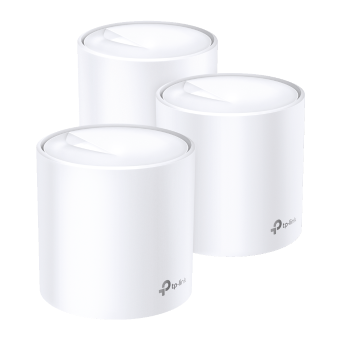
Deco X60
AX3000 Whole Home Mesh Wi-Fi 6 System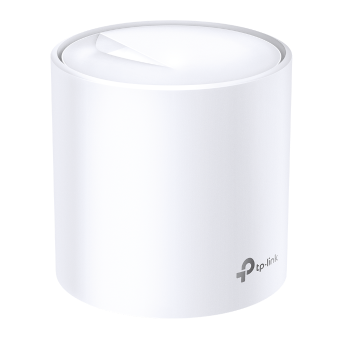
Deco X20
AX1800 Whole Home Mesh Wi-Fi 6 System
WiFi 5 Decos
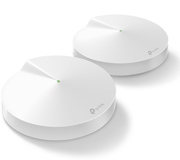
Deco M9 Plus
AC2200 Smart Home Mesh Wi-Fi System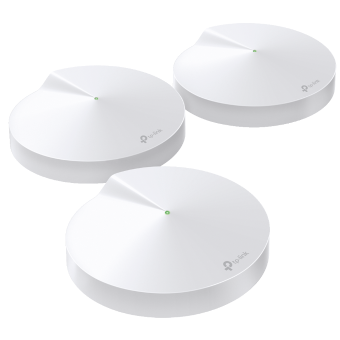
Deco P7
AC1300+AV600 Whole Home Hybrid Mesh Wi-Fi System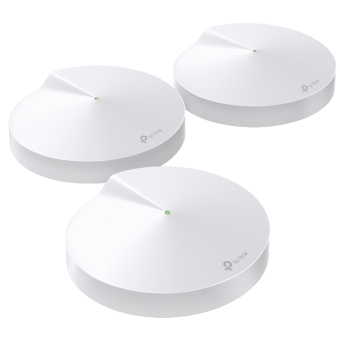
Deco M5
AC1300 Whole Home Mesh Wi-Fi System
Handpicked News
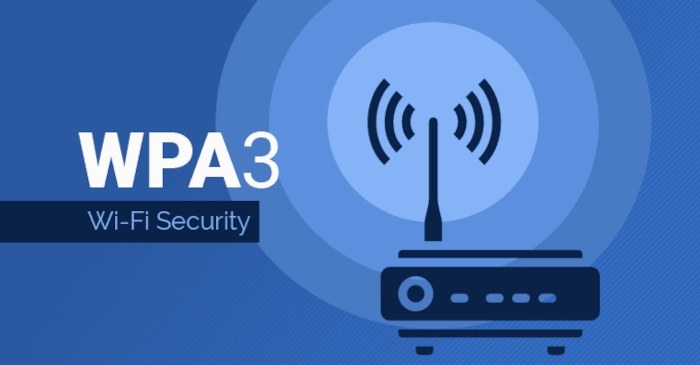
Understanding WPA3-Personal, WPA3-Enterprise and Wi-Fi Security
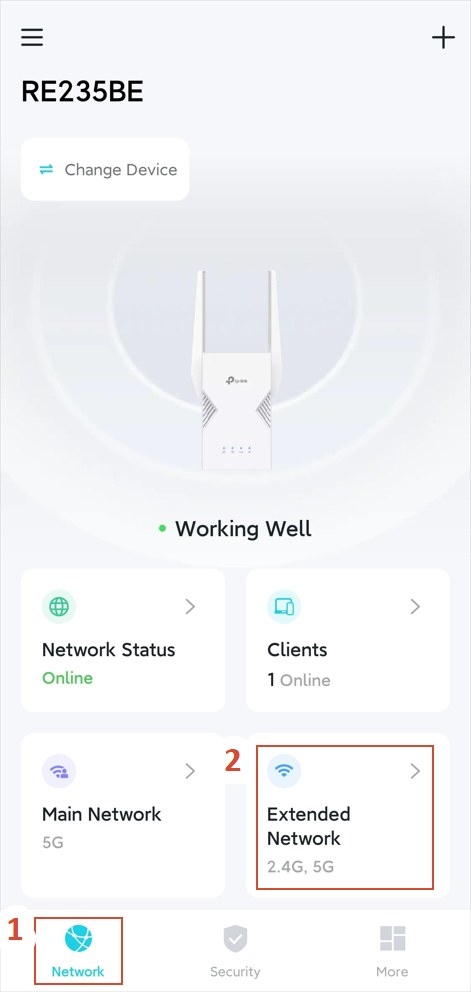
Customize Wi-Fi Settings on a TP-Link Extender
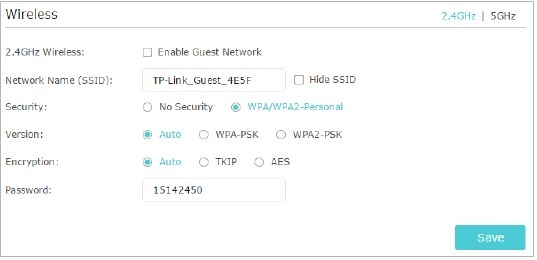
Configure a Guest Wi-Fi Network on a TP-Link Router
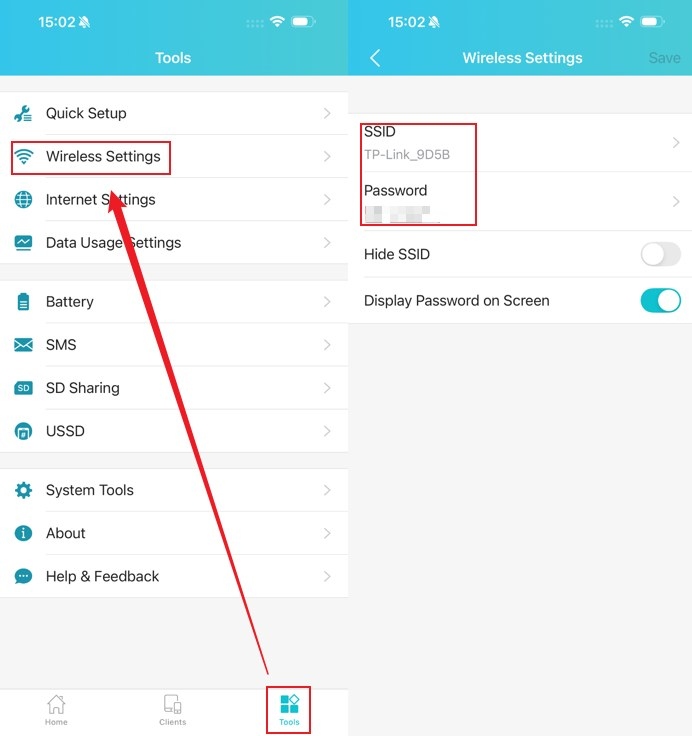
Update Wi-Fi Names, Passwords, and Channels on TP-Link Mobile Routers
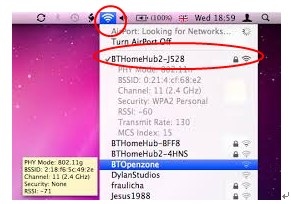
Manually Connect a TP-Link Range Extender to an Apple Router
Stay ahead of the story
Get one weekly email with the best of RouterSetup Desk.

