
Configure a Guest Wi-Fi Network on a TP-Link Router
Give visitors Wi-Fi access while controlling their access separately from your main network. You can configure Guest Network through the router’s web interface or the TP-Link Tether app.
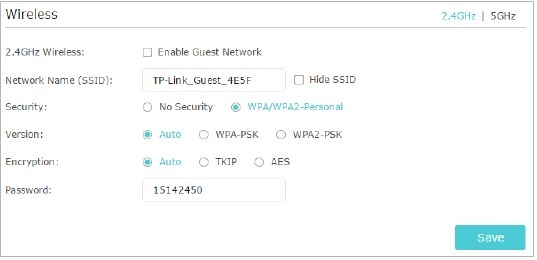
A guest network gives visitors secure Wi-Fi access at home or work. Separate access options for guests help protect the security and privacy of your main network.
Set up Guest Network in a browser
- Sign in to the router’s web-based interface. For login instructions, consult the guide titled How do I log into the web-based Utility (Management Page) of TP-Link wireless router?
- Open Advanced > Guest Network and find the Wireless section.
- Configure the guest network:
- Choose the 2.4GHz or 5GHz network, then select Enable Guest Network.
- Set the SSID. Leave Hide SSID unselected unless you want guests to enter the network name manually.
- Choose WPA/WPA2 Personal for Security, leave Version and Encryption at their default values, and create a password.
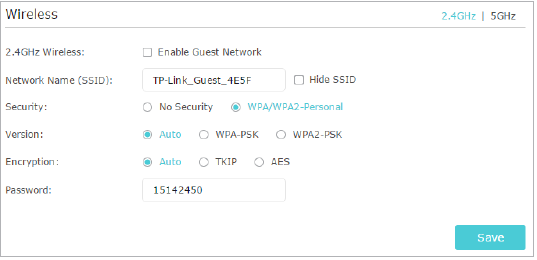
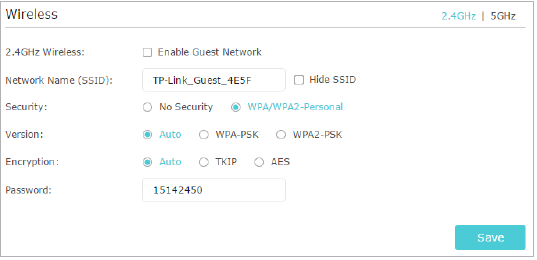
- Click Save. Visitors can now connect with the SSID and password you configured.
To check the guest network’s details, open Advanced > Status and find Guest Network.
Access Guest Network in the Tether app
- Connect your smartphone to the TP-Link router’s main Wi-Fi network.
- Open TP-Link Tether and select your router’s icon in My Devices.
- If asked, enter the administrator login password you created for the router.
- Tap Guest Network, or open More at the bottom of the screen and select Guest Network to adjust its settings.
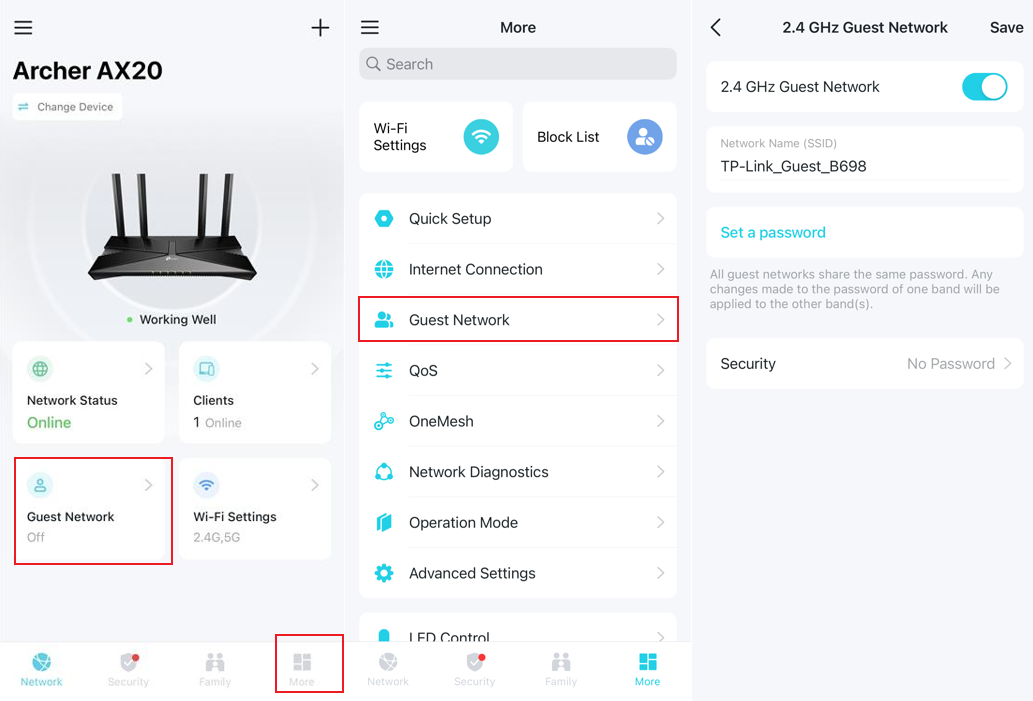
For details about individual functions and settings, download your product’s manual from the Download Center.
Handpicked News
Understanding WPA3-Personal, WPA3-Enterprise and Wi-Fi Security
WPA3 offers personal and enterprise security options, but device compatibility affects whether you can use it. This guide compares those options with WPA2, reviews older protections and explains why router updates matter.
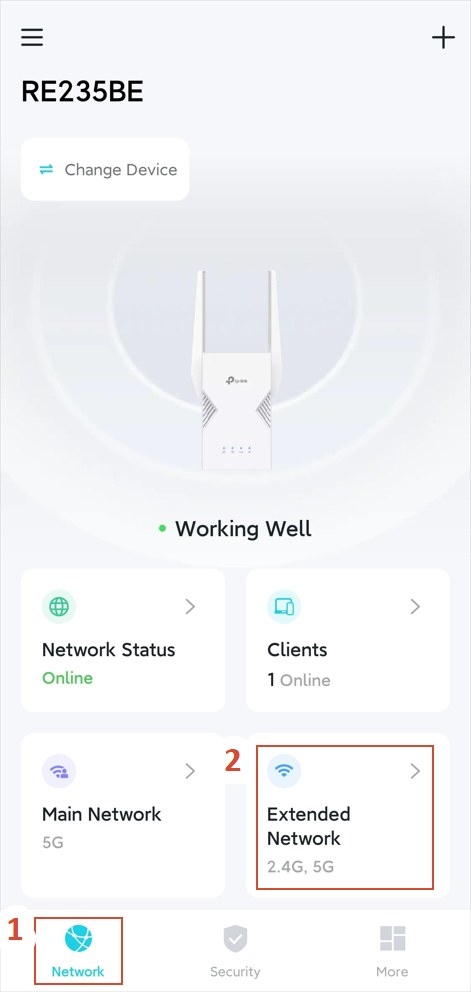
Customize Wi-Fi Settings on a TP-Link Extender
Use TP-Link Tether or the web management page to change your extender’s wireless settings. Available options depend on its model and whether it operates in Range Extender or Access Point mode.
Protect Your Home Wi-Fi: Router Security and Family Controls
Home network protection involves router passwords, firmware updates, wireless encryption, and controls for connected devices. Learn how to assess security features, manage family internet use, and understand the protections offered by TP-Link Deco and HomeCare™.
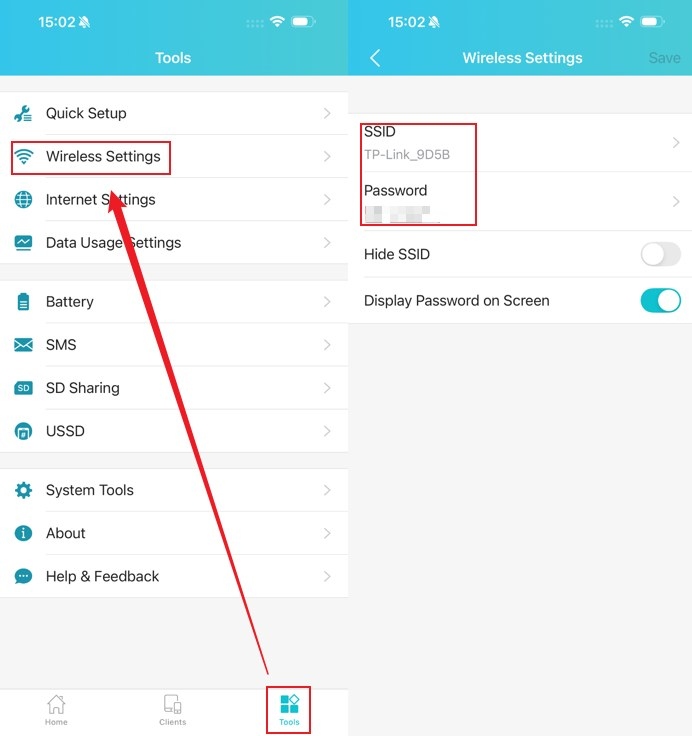
Update Wi-Fi Names, Passwords, and Channels on TP-Link Mobile Routers
TP-Link Mobile Wi-Fi settings can be changed through apps or the web interface, with different options for 3G/4G and 5G models. This guide covers those procedures and explains the available wireless settings.
Manually Connect a TP-Link Range Extender to an Apple Router
The Apple router utility’s printer-specific WPS feature cannot set up a range extender correctly. If the RE light stays off after a WPS attempt, use the extender’s web interface to configure the connection manually.
Stay ahead of the story
Get one weekly email with the best of RouterSetup Desk.

