
Changing DNS Servers on TP-Link Wireless and DSL Modem Routers
Use your TP-Link router’s web management page to enter preferred DNS servers, save the configuration, and reboot. The menu paths differ between wireless routers and DSL modem routers.
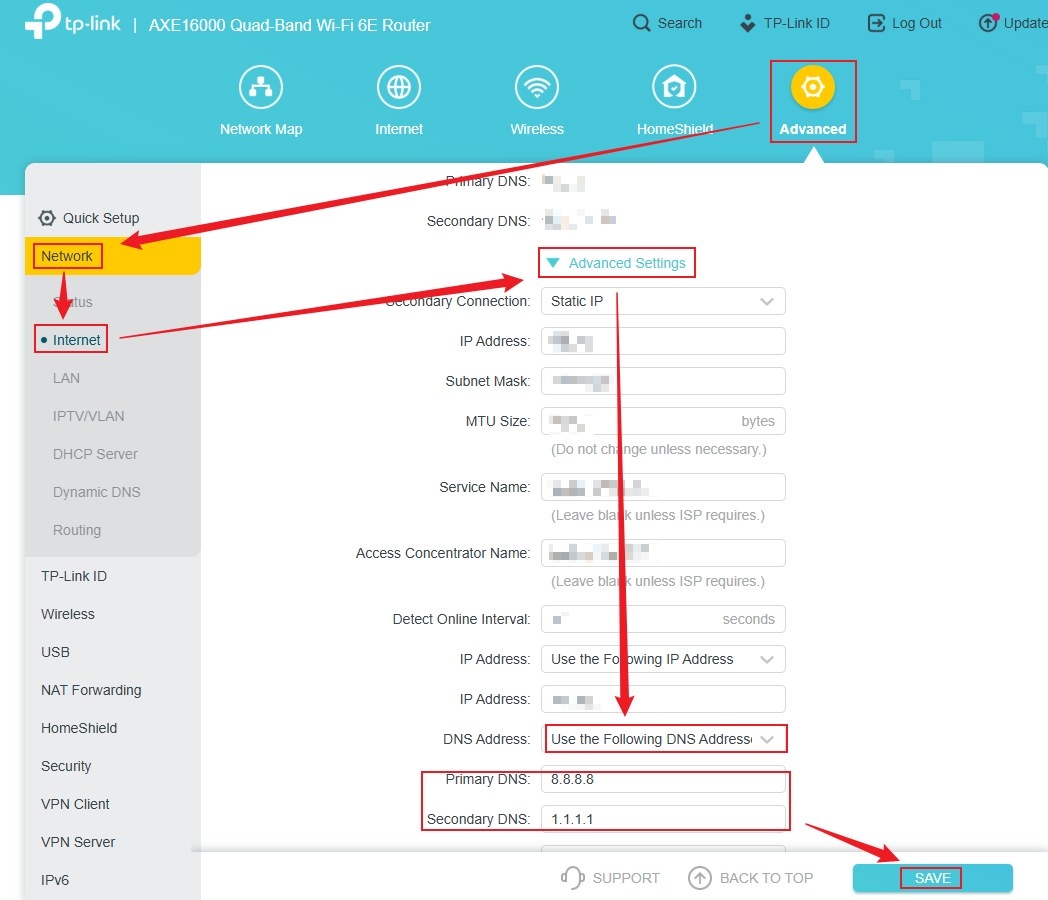
Changing DNS servers lets you use a preferred DNS provider and can be an initial troubleshooting step for a slow or unstable Internet connection. Follow the procedure for your device below.
Wireless routers
- Connect your computer to the router. In a browser, sign in at https://tplinkwifi.net/ or http://192.168.0.1/.
- Open Advanced > Network > Internet. Under Advanced Settings, choose Use the following DNS addresses to reveal the Primary DNS and Secondary DNS fields. Enter your addresses, such as 8.8.8.8 and 1.1.1.1, then select SAVE.
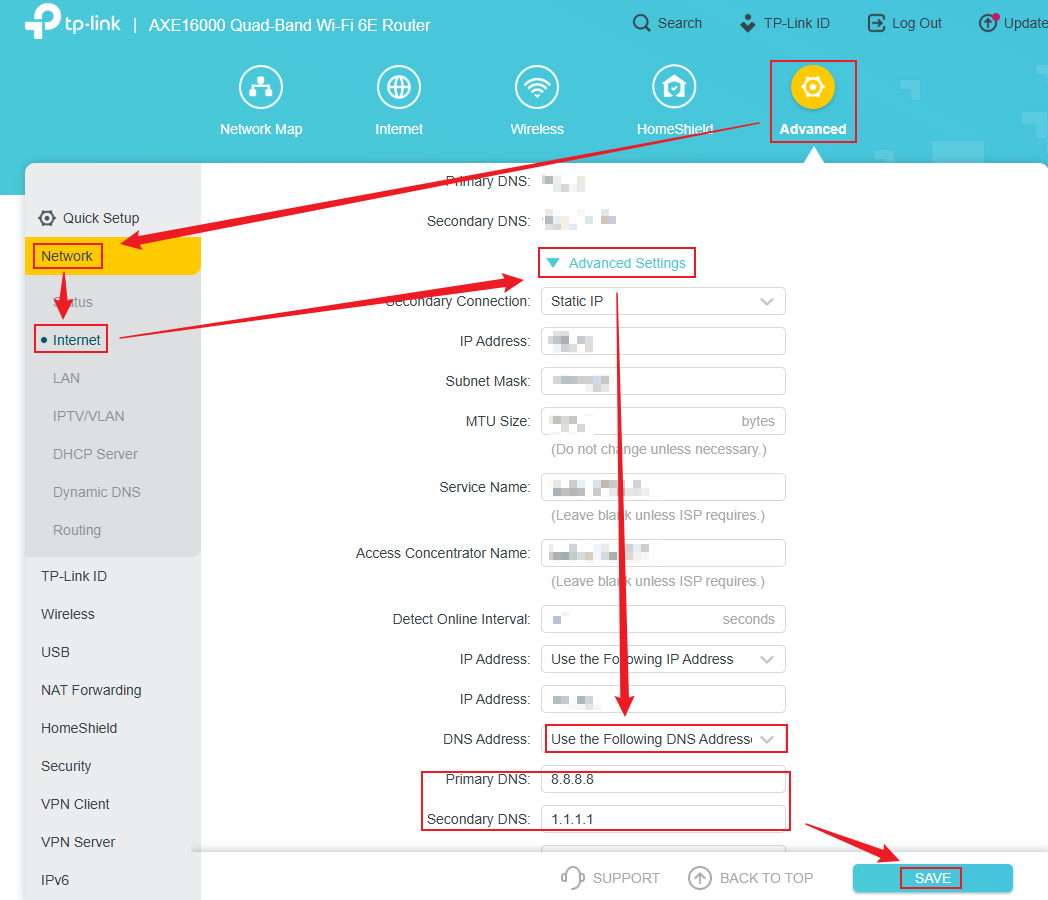
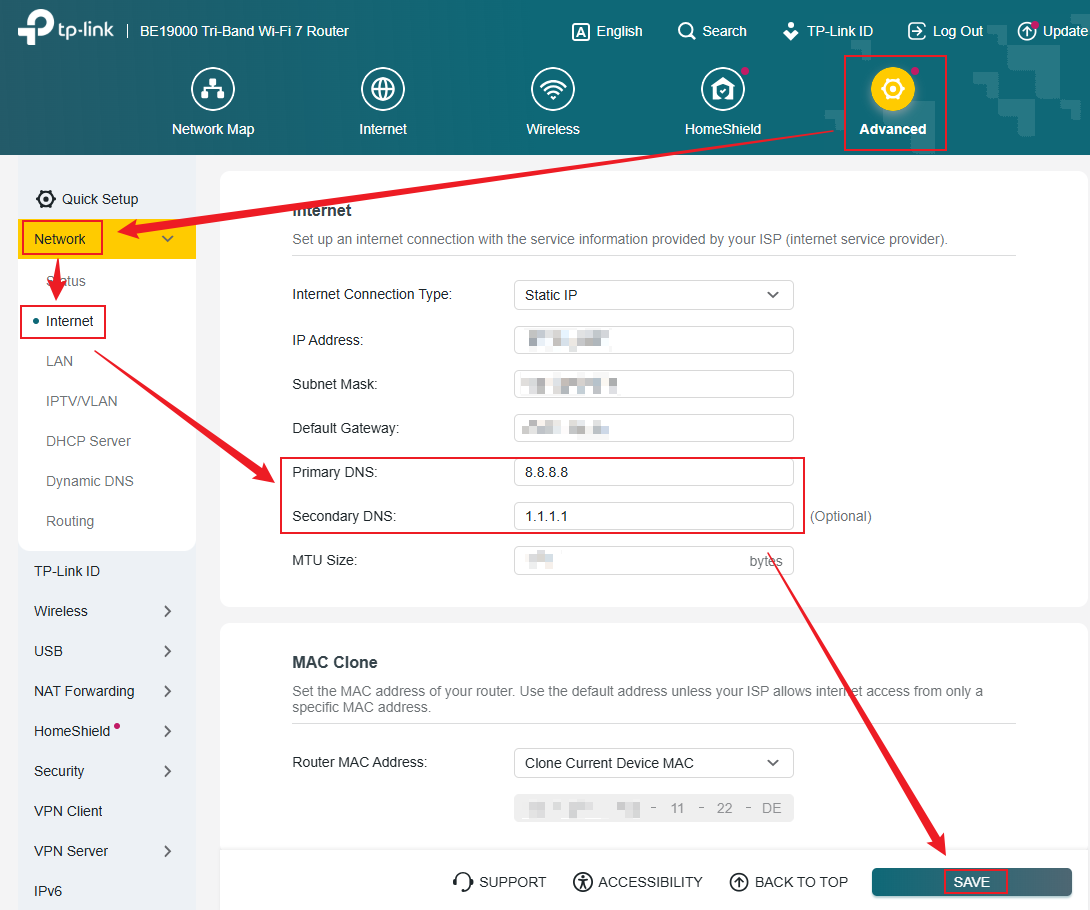
On some models, the DNS fields appear directly on Advanced > Network > Internet, without expanding Advanced Settings. TP-Link recommends 8.8.8.8 as Primary DNS and 1.1.1.1 as Secondary DNS for reliable performance. Enter the addresses and select SAVE.
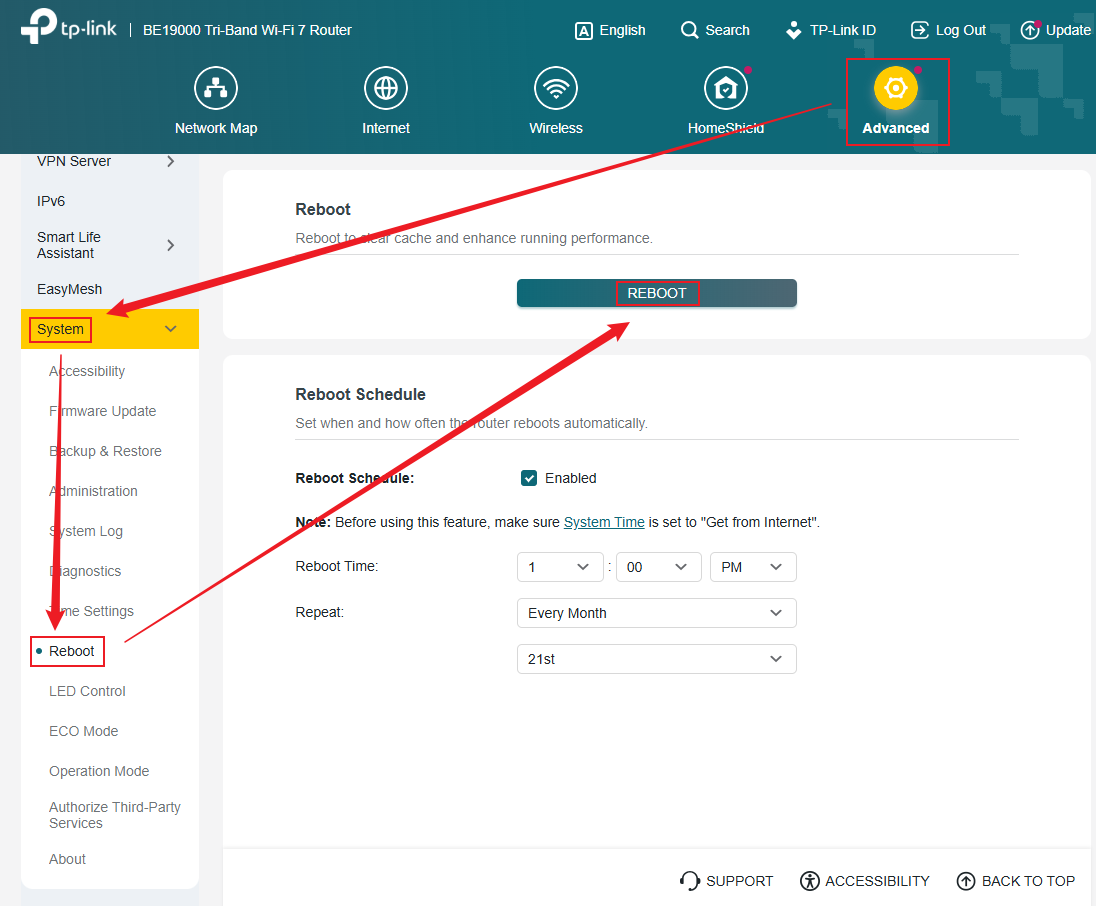
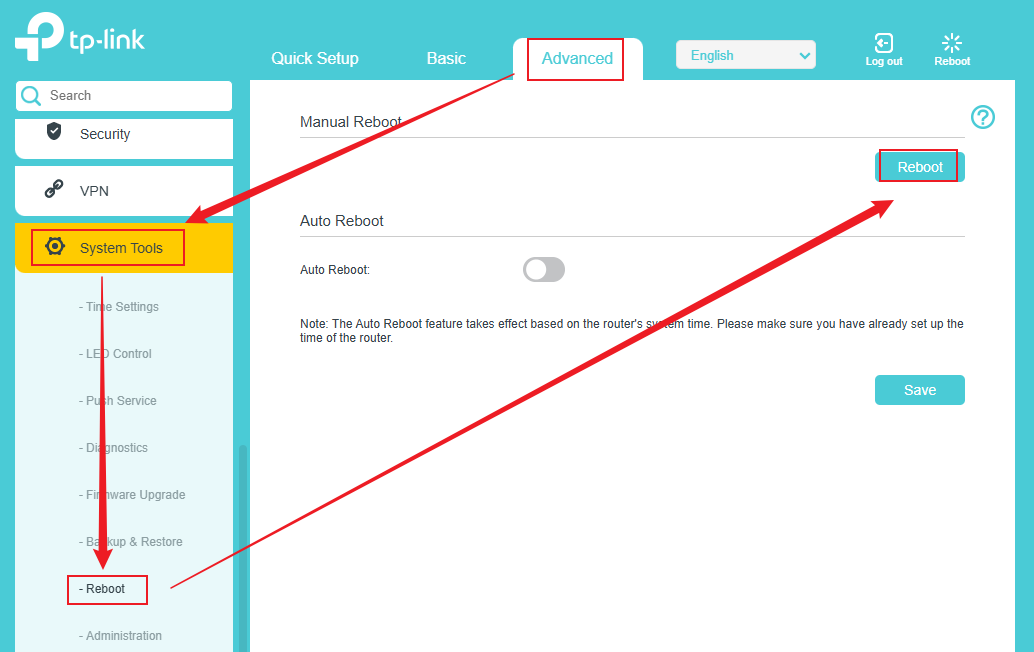
- A restart is required to activate the changes. Open Advanced > System > Reboot and select REBOOT.
DSL modem routers
- Connect your computer to the DSL modem router, then use a browser to sign in at http://tplinkmodem.net/ or http://192.168.1.1/.
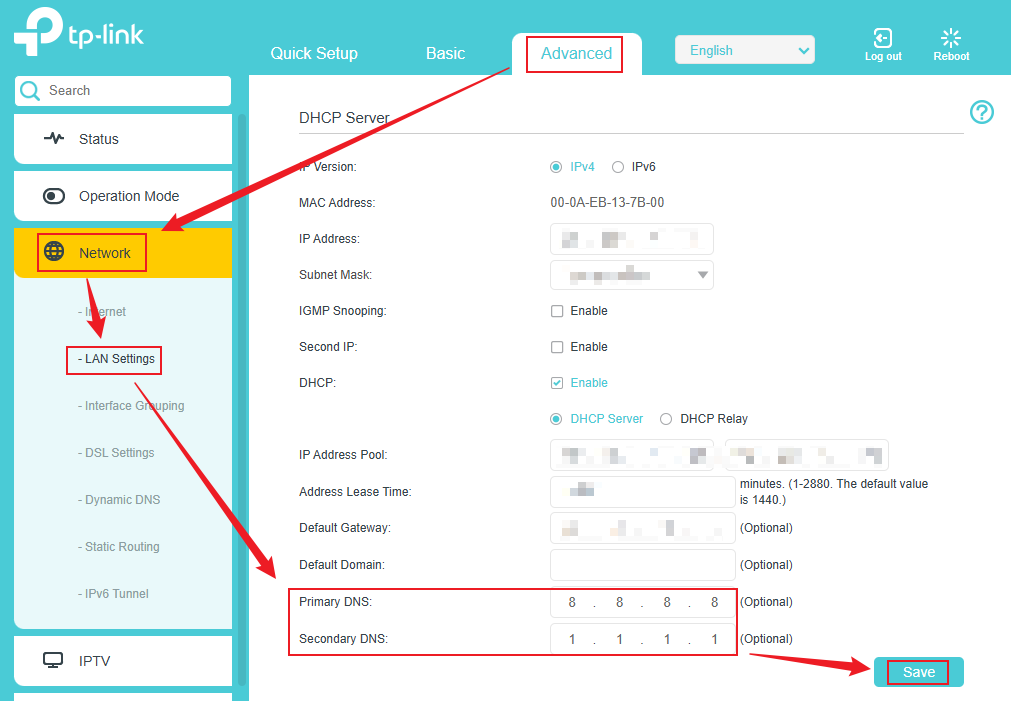
- Open Advanced > Network > LAN Settings, select Modify, and enter your preferred DNS servers. Select Save.
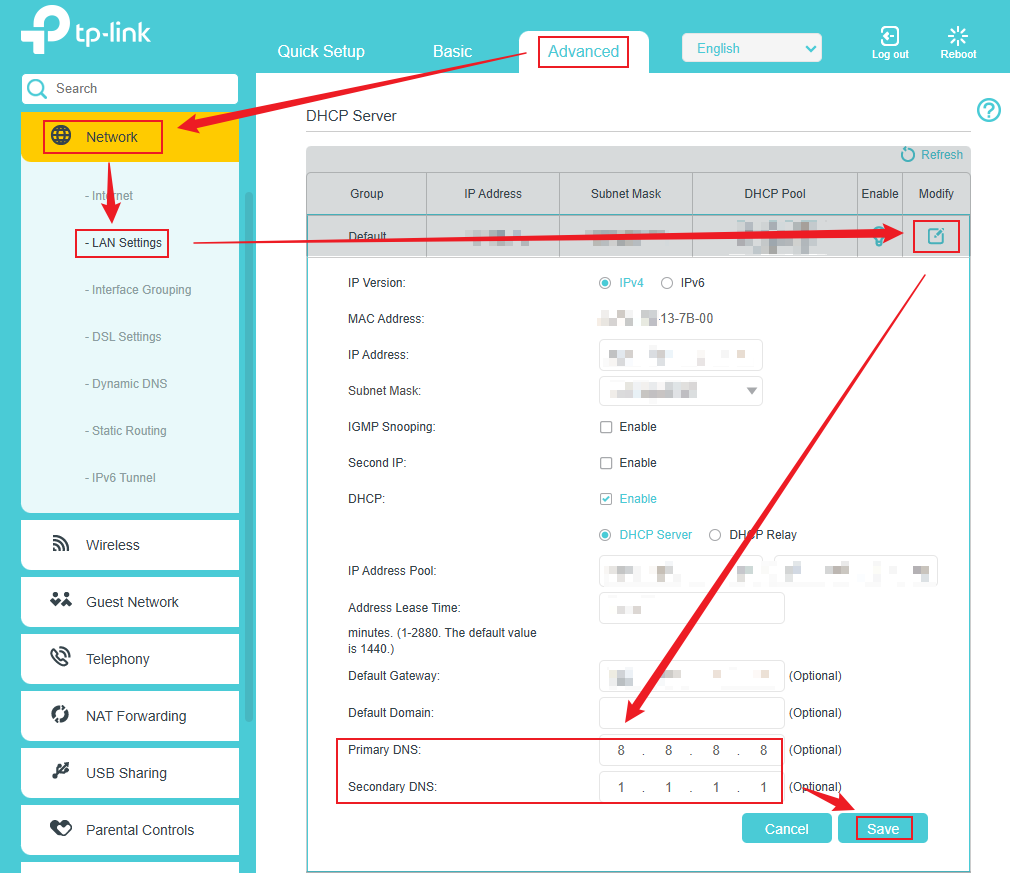
Some models display Primary DNS and Secondary DNS directly under Advanced > Network > LAN Settings. TP-Link recommends 8.8.8.8 and 1.1.1.1, respectively, for optimal performance. Save the entries with Save.
- To make the new settings effective, open Advanced > System Tools > Reboot and select Reboot.
Management addresses and related guides
Wireless router management addresses: https://tplinkwifi.net/ or http://192.168.0.1/. DSL modem router management addresses: http://tplinkmodem.net/ or http://192.168.1.1/.
For a Deco system, consult the guide on changing DNS server settings on Deco. For a custom DNS server such as Pi-Hole, consult the guide on using Pi-Hole DNS Server on TP-Link routers.
Handpicked News
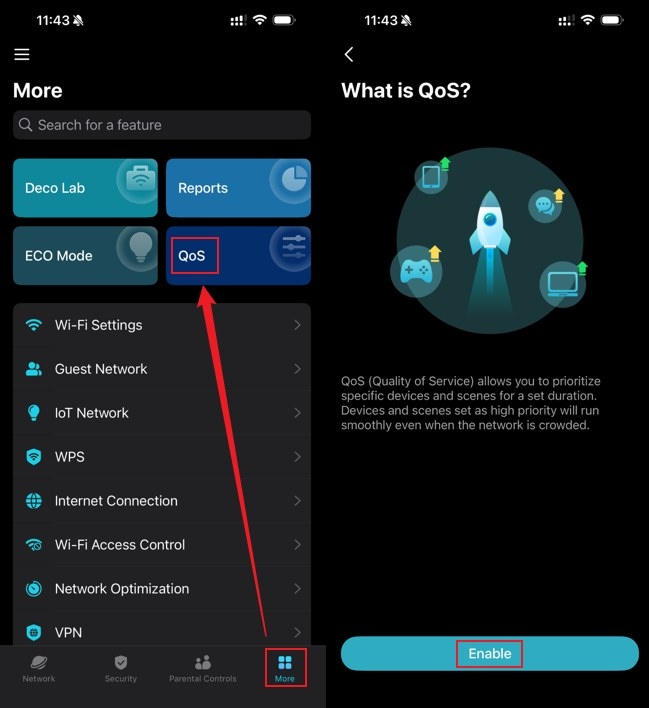
Configure Device and Activity Priorities with TP-Link Deco QoS
Set Up an Access Point for Point-to-Multipoint Bridging
Troubleshooting Port Forwarding on TP-Link Routers and Deco
What to Try When Windows 11/10 Won’t Change Your Static IP or DNS
Give Devices a Fixed IP with Deco Address Reservation
Stay ahead of the story
Get one weekly email with the best of RouterSetup Desk.

