
Troubleshooting Port Forwarding on TP-Link Routers and Deco
Failed port forwarding often involves a private or CGNAT WAN address, or Windows Firewall blocking the connection. Check local server access, forwarding rules, firewall settings, WAN addressing, and client configuration in that order.
Port forwarding failures on TP-Link routers and Deco commonly stem from a private or CGNAT WAN IP assigned by the ISP, or an incoming connection blocked by Windows Firewall. Work through these five checks in order.
Steps to diagnose port forwarding
Step 1: Test local server access
Confirm the server’s IP address and port number, then try reaching it from the local network. If local access fails, investigate the server configuration before the router’s forwarding rules.
Step 2: Verify the forwarding rule
Check that the router’s rule specifies the correct internal IP address, port number, and protocol.
Step 3: Review Windows Firewall
Windows Firewall can block connections from another subnet according to the selected network location. Use the firewall and network-profile procedures in Tip 2 below.
Step 4: Inspect the WAN IP address
Router and Deco port forwarding require a public WAN IP. If your router has a private address behind an upstream modem router, open the same port on that upstream device too. Tip 1 explains where to find the WAN address.
CG-NAT providers such as Comporium and Direct link - radio service, along with most 3G/4G/5G ISPs, generally supply private or CGNAT addresses. The CGNAT range, 100.64.0.0–100.127.255.255, can resemble public addressing but is not publicly routable. It prevents OpenVPN and port forwarding and affects NAT Type. Ask the ISP for a public IP address.
Step 5: Check the client’s IP configuration
If a device requires a static IP, keep it on the router’s subnet and set its gateway to the router’s LAN IP address. Where possible, use DHCP to obtain an address directly from the router.
Tip 1: Find the WAN IP address
Deco
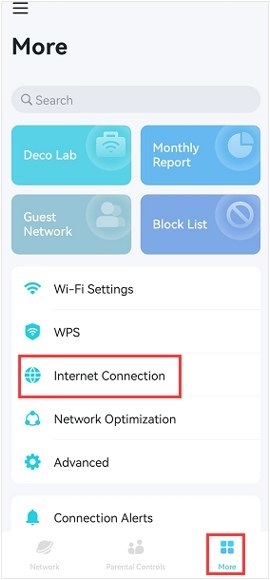
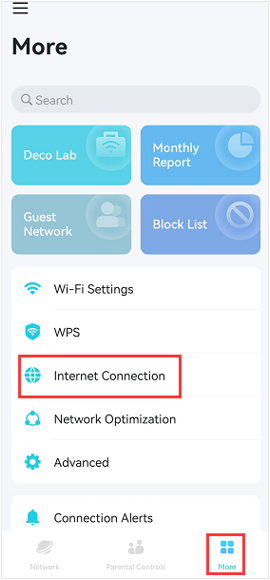
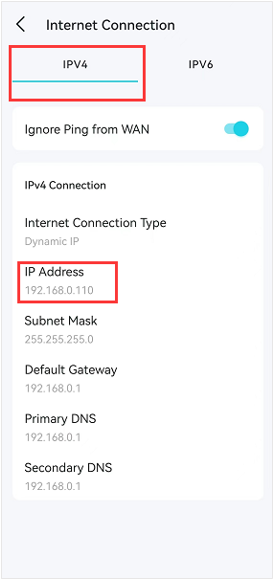
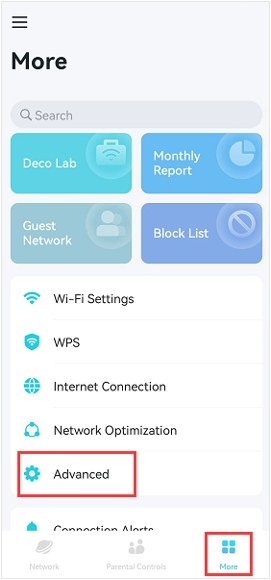
In the Deco app, open More > Internet Connection > IPv4 to view the network’s WAN IP.
DSL modem, wireless, and 4G/5G routers
- Connect to the router over Wi-Fi or Ethernet. Open a browser and sign in using the appropriate address:
- Wireless routers: https://tplinkwifi.net/
- DSL modem / 4G/5G routers: http://tpllinkmodem.net/
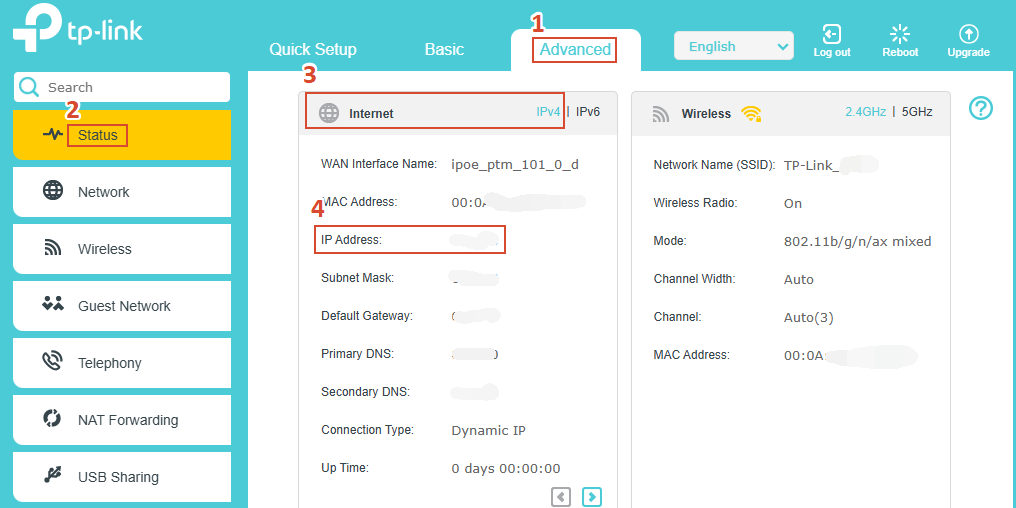
- Open Advanced > Status > Internet and find the IPv4 IP address.
Note: The interface varies by model.
Tip 2: Adjust Windows Firewall or the network location
Method 1: Temporarily disable Windows Firewall
For Windows 7, open Control Panel > System and Security > Windows Firewall, then select Turn Windows Firewall on or off.
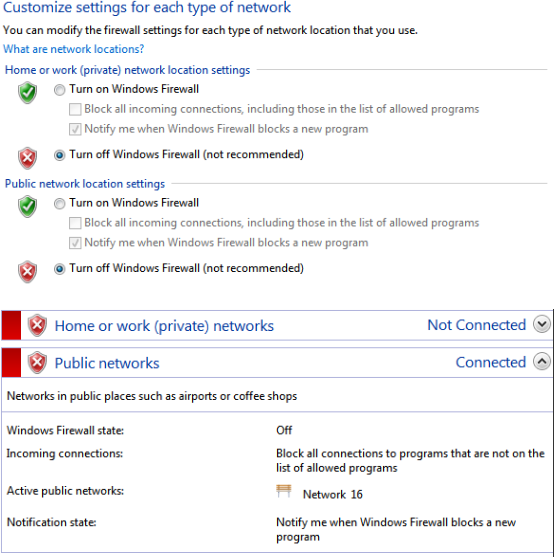
For Windows 10/11, open Settings > Update/Privacy & Security > Firewall & network protection. Choose the active Private Network or Public Network, then use the Microsoft Defender Firewall button to switch it off.
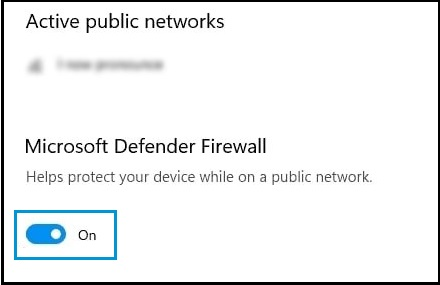
If another firewall is installed, such as Bitdefender or Norton, uninstall it or place it in silent mode.
Method 2: Select a Home or Private network
For Win7, open Control Panel > Network and Internet > Network and Sharing Center.

Select the network location and choose Home Network.
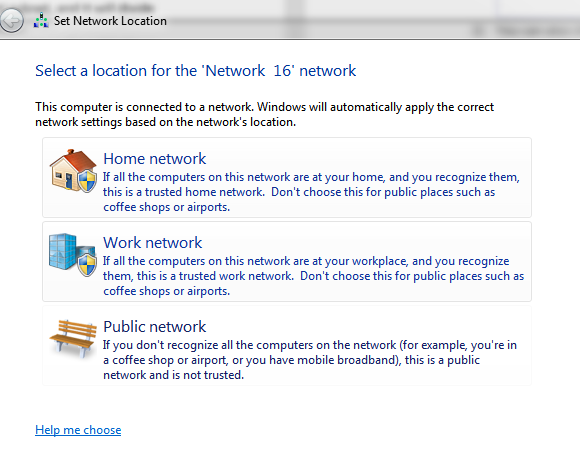
For Win 10, open Settings > Network and Internet. Select the configured connection and set Network profile to Private.
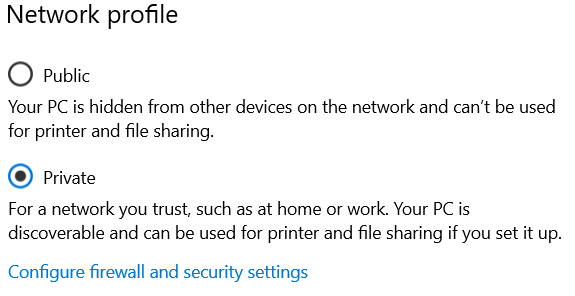
Understanding public and private addresses
- A public IP is a unique address assigned directly by the ISP and reachable from the Internet. The ISP assigns the WAN IP dynamically.
- Private ranges include 192.168.x.x, 10.x.x.x, and 172.16.x.x–172.31.x.x. These addresses, like CGNAT addresses from 100.64.0.0 to 100.127.255.255, are not publicly routable.
- A private router WAN address indicates another NAT device upstream. Open the service ports on that device as well.
- Most 4G LTE providers assign private addresses. Request a public IP from the ISP or ask it to perform port forwarding on its side.
If these checks do not resolve the issue, contact TP-Link technical support.
Handpicked News
Configure Device and Activity Priorities with TP-Link Deco QoS
Set Up an Access Point for Point-to-Multipoint Bridging
What to Try When Windows 11/10 Won’t Change Your Static IP or DNS
Changing DNS Servers on TP-Link Wireless and DSL Modem Routers
Give Devices a Fixed IP with Deco Address Reservation
Stay ahead of the story
Get one weekly email with the best of RouterSetup Desk.

