
Wi-Fi 5 or Wi-Fi 6: Understanding the Upgrade—and Where Wi-Fi 7 Fits
Wi-Fi 6 improves on Wi-Fi 5 through more efficient traffic handling, stronger security, and better performance when many devices are active. Whether to upgrade depends on your workload, coverage, and budget, while falling Wi-Fi 7 prices make it another option to consider.
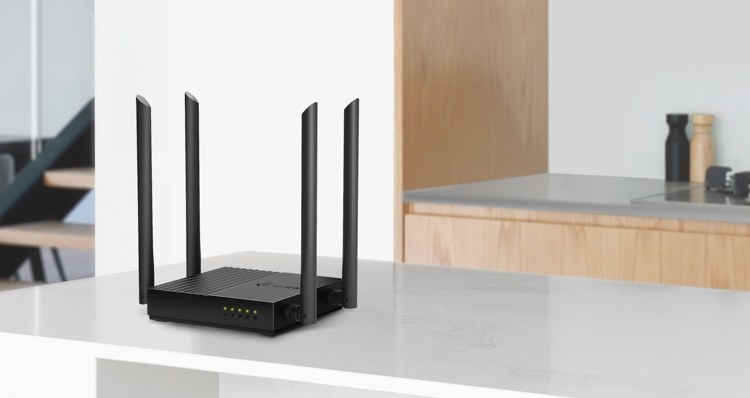
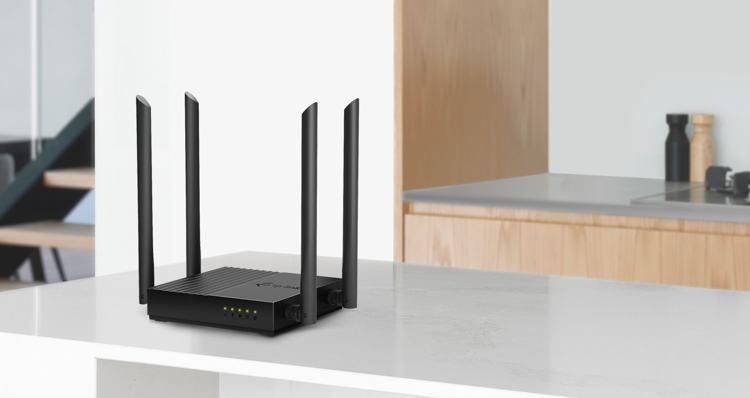
A Wi-Fi 5 router may still meet modest needs, but growing device counts can expose its limits through slower connections, interrupted calls, and wireless speeds that fall short of your Internet plan. Wi-Fi 6 (802.11ax) improves on Wi-Fi 5 (802.11ac) with higher speeds and more efficient management of busy networks.
The decision is no longer limited to those two standards. Wi-Fi 7 is widely available, and lower prices make it worth considering before buying a Wi-Fi 6 router.
Main Points
- Wi-Fi 6 offers better reliability, lower latency, and higher speeds, particularly when multiple devices are active.
- Orthogonal Frequency Division Multiple Access (OFDMA) is its biggest improvement: it divides a channel so several devices can be served together, rather than one at a time per channel.
- Adding 2.4 GHz alongside 5 GHz gives Wi-Fi 6 greater reach and better wall penetration than Wi-Fi 5.
- Homes with 10 or more devices and regular 4K streaming, gaming, or remote work are more likely to benefit. Wi-Fi 5 can remain adequate for light use with five or fewer devices.
- Wi-Fi 7's increasing affordability changes the upgrade calculation.
How Wi-Fi 5 and Wi-Fi 6 Differ
Both standards rely on routers and wireless adapters exchanging radio signals. The difference lies in how effectively they use that infrastructure: Wi-Fi 5 suited an era with fewer connected devices, whereas Wi-Fi 6 focuses on sharing network resources across a multi-device household.
|
Feature |
Wi-Fi 5 (802.11ac) |
Wi-Fi 6 (802.11ax) |
|
IEEE Standard |
802.11ac |
802.11ax |
|
Max Theoretical Speed |
~3.5 Gbps |
~9.6 Gbps |
|
Frequency Bands |
5 GHz |
2.4 GHz and 5 GHz |
|
MU-MIMO |
4x4 downlink |
8x8 uplink and downlink |
|
Key New Feature |
None |
OFDMA, BSS Coloring, TWT |
|
Security Standard |
WPA2 |
WPA3 |
Maximum speeds and security matter, but everyday improvements depend especially on MU-MIMO capacity and the technologies introduced with Wi-Fi 6. Rather than only accelerating individual connections, Wi-Fi 6 makes simultaneous traffic across the network more efficient.
The Technologies Behind the Improvement
OFDMA: Dividing a Channel Among Devices
With Wi-Fi 5, devices take turns using a channel. OFDMA (Orthogonal Frequency-Division Multiple Access) divides that channel into smaller portions, allowing a router to serve several devices together.
When a video call, a game, and a TV stream run at the same time, this approach reduces competition and waiting. For a busy household, it is Wi-Fi 6's most significant improvement.
MU-MIMO: Greater Capacity in Both Directions
MU-MIMO (Multi-User, Multiple Input, Multiple Output) uses multiple antennas to communicate with several devices simultaneously. Wi-Fi 5 Wave 2 supported up to four devices at once, but only for data sent from the router.
Wi-Fi 6 raises that number to eight and supports both sending and receiving. This helps reduce slowdowns when several people are actively using the network for different tasks.
BSS Coloring and TWT: Managing Interference and Power
BSS Coloring helps a router distinguish its own signals from neighboring networks and filter out competing signals automatically. It is particularly useful in apartments and densely populated neighborhoods with overlapping networks.
TWT (Target Wake Time) schedules device check-ins instead of requiring constant activity. Phones, tablets, and smart home devices can therefore achieve better battery life without user setup.
WPA3 Security
Wi-Fi 6 requires Wi-Fi Protected Access 3, or WPA3. Compared with Wi-Fi 5's WPA2, it strengthens encryption, makes interception by someone on the same network more difficult, and improves secure onboarding of new devices. Most home users receive these security benefits without taking additional action.
What Changes in Everyday Use?
Speed Under Load
Wi-Fi 5 has a theoretical maximum of around 3.5 Gbps, compared with up to 9.6 Gbps for Wi-Fi 6. Neither figure represents typical home speeds, which also depend on your Internet plan, device placement, and the number of connected devices.
The more useful improvement is maintaining speed while the network is busy. OFDMA and enhanced MU-MIMO help Wi-Fi 6 address the slowdowns that occur when several people use Wi-Fi 5 at once.
Reach and Coverage
Wi-Fi 5 operates primarily at 5 GHz, offering speed but less range and weaker wall penetration. Wi-Fi 6 also uses 2.4 GHz, improving reach to distant devices or those behind walls.
However, Wi-Fi 6 alone will not remove every dead zone in a large or multi-story home. When coverage is the main issue, a mesh Wi-Fi system is often a more effective solution.
Busy Households
Modern homes may have 20 or more connected phones, laptops, TVs, consoles, speakers, and smart home devices. Wi-Fi 6's capacity improvements are especially valuable in these environments.
With 15 or more connected devices, slowdowns during simultaneous use can make the benefits noticeable. OFDMA and expanded MU-MIMO manage congestion more effectively; the important factor is how many devices are active, not merely connected.
When Is a Wi-Fi 6 Upgrade Worthwhile?
Reasons to Upgrade
- You have 10 or more connected devices and performance drops when several are active.
- Regular gaming, video calls, or 4K streaming suffer from lag or buffering.
- Your Internet plan delivers 500 Mbps or faster, but your Wi-Fi 5 router provides wireless speeds well below that level.
- Nearby networks in an apartment building or busy neighborhood cause inconsistent performance.
Reasons to Keep Your Current Router
- With five or fewer devices used mainly for browsing, one-screen streaming, and occasional video calls, the improvement may be difficult to notice.
- A relatively recent Wi-Fi 5 router that already meets your needs is unlikely to feel substantially different simply because its replacement has better specifications.
Should You Move Directly to Wi-Fi 7?
Wi-Fi 7 routers are now widely available and cost significantly less than at launch. For someone replacing Wi-Fi 5 equipment, that makes them a relevant alternative to Wi-Fi 6.
What Wi-Fi 7 Introduces
Wi-Fi 7 (802.11be) builds on Wi-Fi 6 with three major changes:
- Multi-Link Operation (MLO) lets devices use multiple frequency bands simultaneously, maintaining performance through other bands when one slows down.
- 320 MHz channels double the available bandwidth—the amount of data the network can move at once—compared with Wi-Fi 6.
- 4096-QAM replaces Wi-Fi 6's 1024-QAM, packing roughly 20% more data into each transmission for higher speeds without requiring more signal.
The Wi-Fi 7 in-depth overview provides further explanation of these capabilities.
Balancing Budget and Longer-Term Needs
For many Wi-Fi 5 users buying a new router, moving directly to Wi-Fi 7 is worth considering. More accessible entry-level prices, better multi-device performance from the outset, and greater room for growing needs make it a more future-proof investment.
Wi-Fi 6 remains a worthwhile budget-led upgrade and should serve most households well for years. If your budget extends to Wi-Fi 7, compare both options. The Wi-Fi 6 vs. Wi-Fi 7 comparison explores their differences in more detail.
|
Factor |
Choose Wi-Fi 6 |
Choose Wi-Fi 7 |
|
Budget |
Lower price point |
Higher upfront cost |
|
Device count |
Fewer active devices |
Many devices, growing household |
|
Internet plan |
Up to 500 Mbps |
Multi-gig fiber (1 Gbps+) |
|
Future-proofing |
3 to 4 years |
5+ years |
|
Wi-Fi 7 devices in home |
Few or none yet |
Growing or planned |
Choosing a TP-Link Router or Mesh System
TP-Link offers Wi-Fi 6 and Wi-Fi 7 routers and mesh systems across several price points. Your home's size, device count, budget, and current problems should guide the choice.
For dead zones or uneven coverage, multiple mesh units working as one seamless network are often more effective than replacing a single router. This approach supports more consistent coverage across areas such as a home office, living room, and backyard.
If congestion rather than coverage is the main problem, a single Wi-Fi 6 or Wi-Fi 7 router can noticeably improve performance for most households. TP-Link's router lineup offers options for different home sizes and budgets.
Wi-Fi 6 is especially relevant to homes with many devices, multi-gig Internet, or frequent 4K streaming, gaming, and remote work. Wi-Fi 7 deserves consideration if you want more capacity for future needs. TP-Link's Wi-Fi 7 lineup and its explanation of how fast Wi-Fi 7 routers actually are provide further information.
Frequently Asked Questions
What separates Wi-Fi 6 from Wi-Fi 5?
Wi-Fi 6 manages simultaneous traffic more efficiently through OFDMA and doubled MU-MIMO capacity. It also adds 2.4 GHz support, WPA3 security, and TWT to improve connected-device battery life.
Is Wi-Fi 5 adequate in 2026?
It can still suit light use with five or fewer devices, including browsing, streaming on one screen, and occasional calls. Homes with 10 or more active devices, frequent 4K streaming, gaming, or regular video calls are more likely to notice improved consistency and reliability from Wi-Fi 6 or Wi-Fi 7.
Can Wi-Fi 6 devices connect to a Wi-Fi 5 router?
Yes. Backward compatibility allows normal connections, but performance remains at Wi-Fi 5 levels. Features such as OFDMA and TWT are unavailable; accessing Wi-Fi 6 benefits requires a Wi-Fi 6 router.
Is Wi-Fi 6 the better buy, or should I consider Wi-Fi 7?
Wi-Fi 6 remains a sound choice when cost is the priority. With prices falling, Wi-Fi 7 offers a more future-proof alternative, improved multi-device performance, and MLO, which Wi-Fi 6 lacks.
How does device count affect the two standards?
Wi-Fi 5 becomes congested as more devices compete for bandwidth. Wi-Fi 6 handles larger numbers more reliably through OFDMA and expanded MU-MIMO, especially when many devices transmit at the same time.
Handpicked News
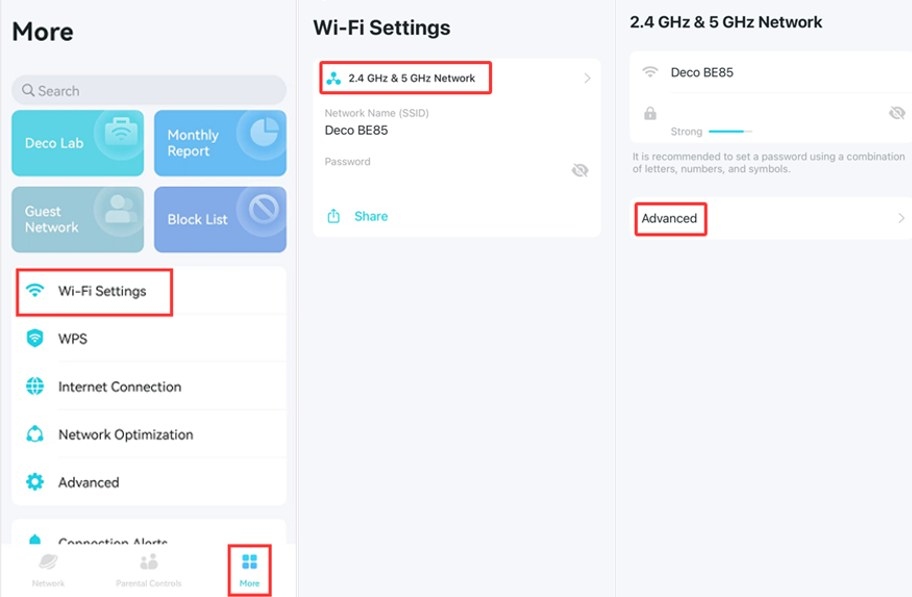
Adjust TP-Link Deco Wi-Fi Channels and Channel Width in the App
Wi-Fi 8 and Wi-Fi 7 Compared: Reliability, Speed, and Upgrade Timing

WiFi 6 and WiFi 6E: What the 6 GHz Extension Changes
WiFi 7 Compared with WiFi 6: Bandwidth, Modulation, and Link Improvements
Choosing a Wi-Fi Band in Windows 11 and Windows 10
Stay ahead of the story
Get one weekly email with the best of RouterSetup Desk.

