
Adjust TP-Link Deco Wi-Fi Channels and Channel Width in the App
Use the Deco app to change channel and channel width separately for the 2.4 GHz and 5 GHz networks. The instructions use Deco BE85 as an example, with availability depending on the supported model and software version.
The Deco app lets you manually adjust the channel and channel width for your TP-Link Deco's 2.4 GHz and 5 GHz networks to help manage interference from neighboring networks. Wider channels, such as 40MHz or 80MHz, can deliver higher speeds; a narrower option such as 20MHz limits interference in crowded areas.
This procedure uses Deco BE85 as the example and applies to supported Deco models listed in the Applies To section.
Note: Available features depend on the model and software version. These instructions and images are illustrative and may differ from your Deco experience.
Change Channel Settings in the Deco App
- With your phone connected to Deco’s Wi-Fi network, launch the Deco app.
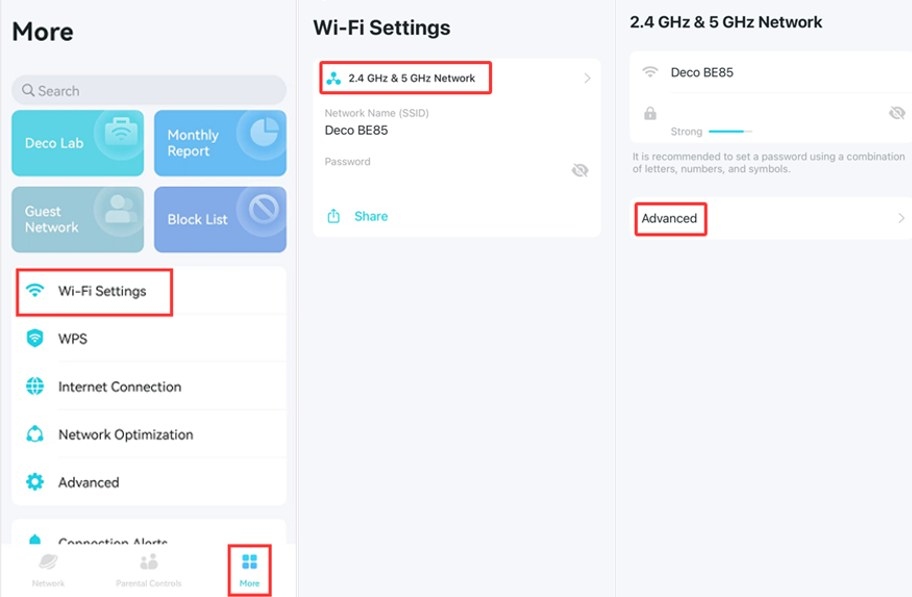
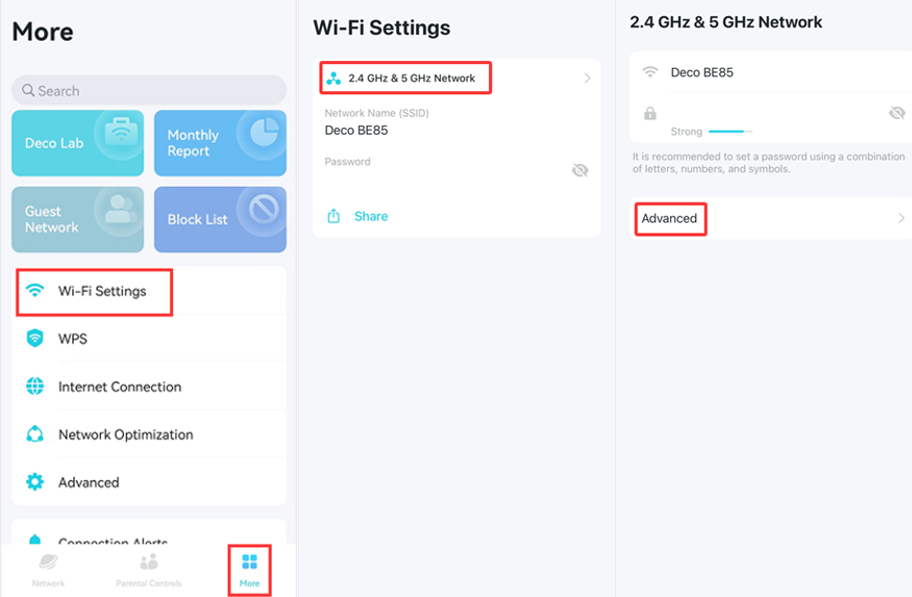
- Navigate to More > Wi-Fi Settings > 2.4G & 5G Wireless Network > Advanced.
- Select 2.4GHz Network or 5GHz Network, then adjust its channel and channel width. Select Apply to save your changes. Go back to the Advanced page and verify the current channel and channel width for each band.
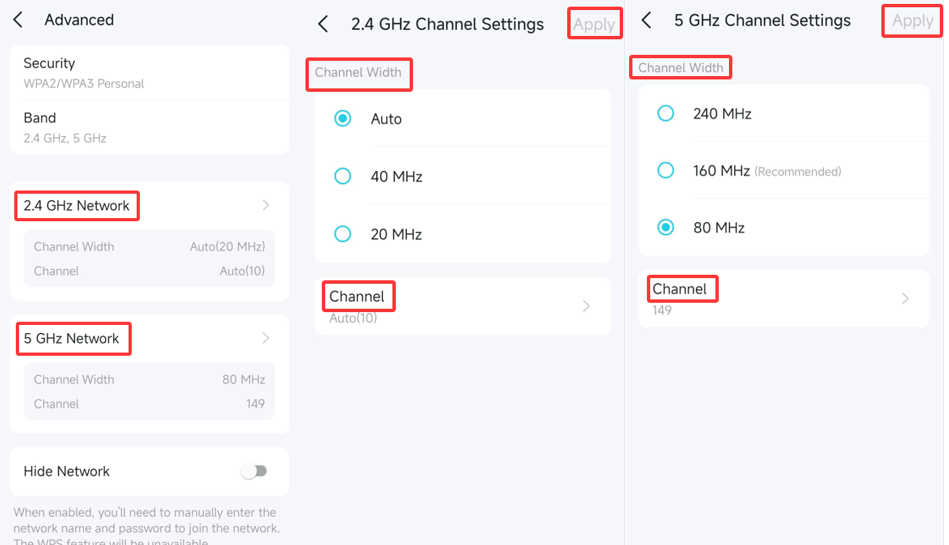
Each band has independent settings, so select them separately when configuring both networks.
For further information about functions and configuration, find your product's manual in the Download Center.
Handpicked News
Wi-Fi 8 and Wi-Fi 7 Compared: Reliability, Speed, and Upgrade Timing

WiFi 6 and WiFi 6E: What the 6 GHz Extension Changes
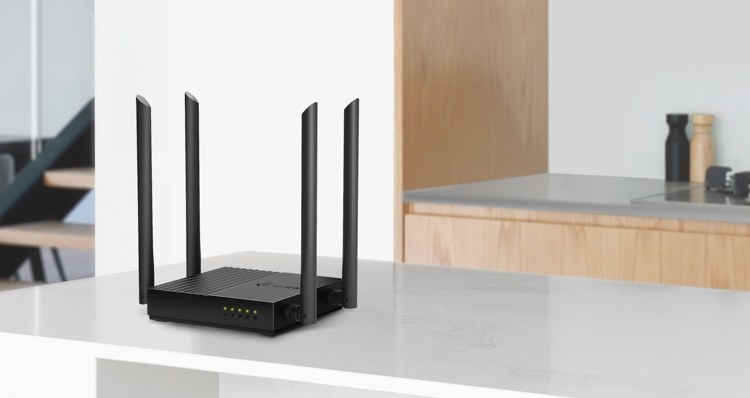
Wi-Fi 5 or Wi-Fi 6: Understanding the Upgrade—and Where Wi-Fi 7 Fits
WiFi 7 Compared with WiFi 6: Bandwidth, Modulation, and Link Improvements
Choosing a Wi-Fi Band in Windows 11 and Windows 10
Stay ahead of the story
Get one weekly email with the best of RouterSetup Desk.

