
What to Try When Windows 11/10 Won’t Change Your Static IP or DNS
If Windows 11/10 will not let you change a static IP address or DNS server, try Settings, command-line alternatives, or DHCP assignment. Additional troubleshooting covers DNS errors and network configuration.
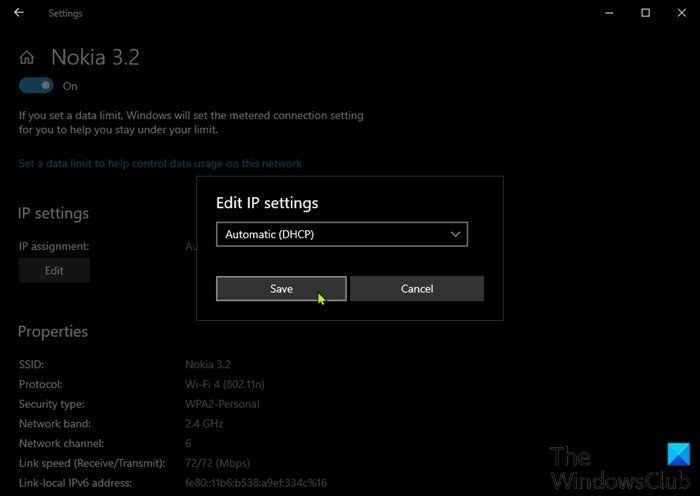
Users seeking greater privacy may want dynamic IP addresses or private DNS servers, but Windows 11/10 can sometimes prevent changes to static IP or DNS settings. The options below provide alternative ways to adjust the configuration.
Before starting, clear the DNS cache, reset Winsock, and release TCP/IP.
Set a fixed IP address or DNS server in Settings
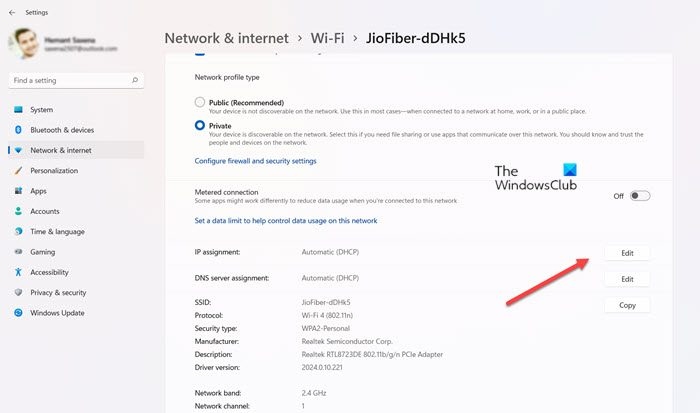
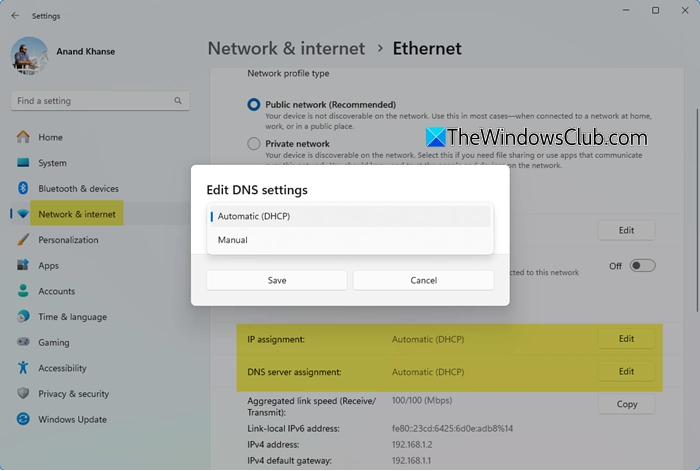
- In Windows 11, open Windows Settings > Network & Internet > Wi-Fi and locate your WiFi (or Ethernet) Network.
- Open Properties and find IP assignment and DNS server assignment.
- Select Edit beside the setting you want to change. In the popup, replace Automatic with Manual, then supply the required details, including IPv4 or IPv6 as appropriate.
- Restart the computer.
For a fixed DNS server specifically, use Edit beside DNS server assignment and enter the details under Manual.
Reset the IP address with CMD
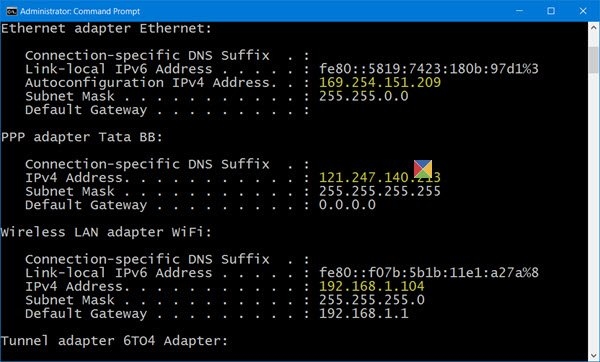
You can inspect, reset, renew, configure, or change the Windows IP address to use a static IP.
Assign a static IP with PowerShell
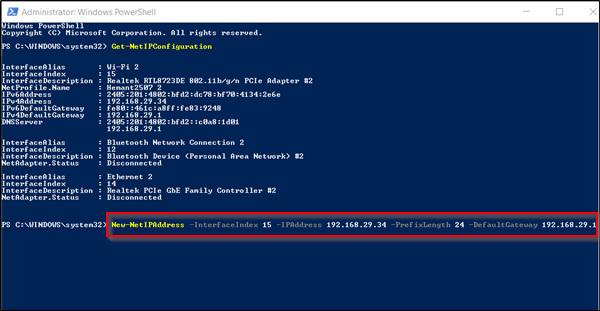
PowerShell provides another way to set a static IP address on Windows; three other methods are also available.
Change DNS through PowerShell or Command Prompt
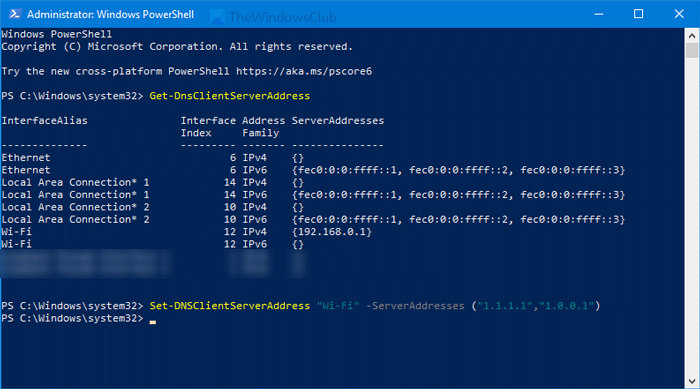
Instead of using the Network Connections window, follow the DNS-changing procedure for Command Prompt or PowerShell.
Use DHCP for IP assignment
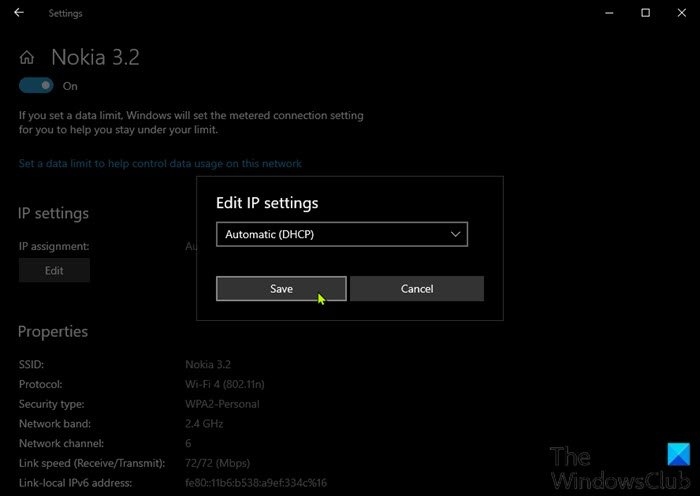
- Open Settings with Windows key + I.
- Select Network & Internet.
- For Wi-Fi, choose Wi-Fi > Manage known networks in the left pane. Select your network, then Properties.
- For Ethernet, choose Ethernet in the left pane, then select your network.
- Scroll to IP settings and select Edit under IP assignment.
- Choose Automatic (DHCP).
- Select Save.
Automatic DHCP makes TCP/IP configuration easier on a Windows PC.
Consider a VPN service
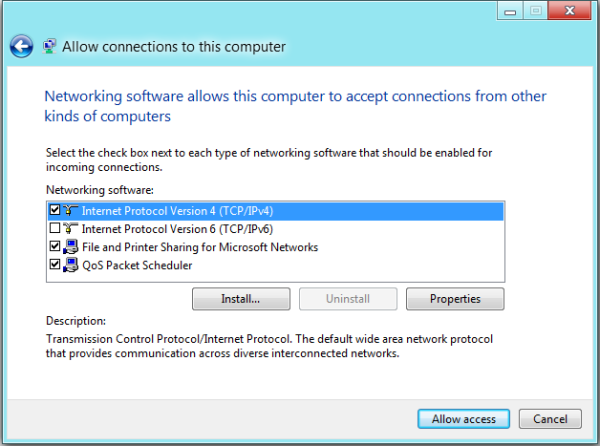
If you want to change your IP address and protect DNS queries regularly, a VPN service is another option. Configure a VPN connection on Windows; connecting through its IP address hides your actual IP and location and encrypts all data traffic to secure the network.
Troubleshoot DNS errors
If Windows 11/10 displays Your DNS Server might be unavailable, flush the DNS cache and renew the IP address if necessary. If the error remains, temporarily disable your antivirus tool or Windows Firewall and check again. Disabling the Proxy and resetting TCP/IP may also help.
For other DNS server problems, first power-cycle the router, modem, and computer. If that fails, flush the DNS cache and reset Winsock. Also update the network drivers and enable Microsoft LLPD Protocol Driver through Wi-Fi Properties.
Handpicked News
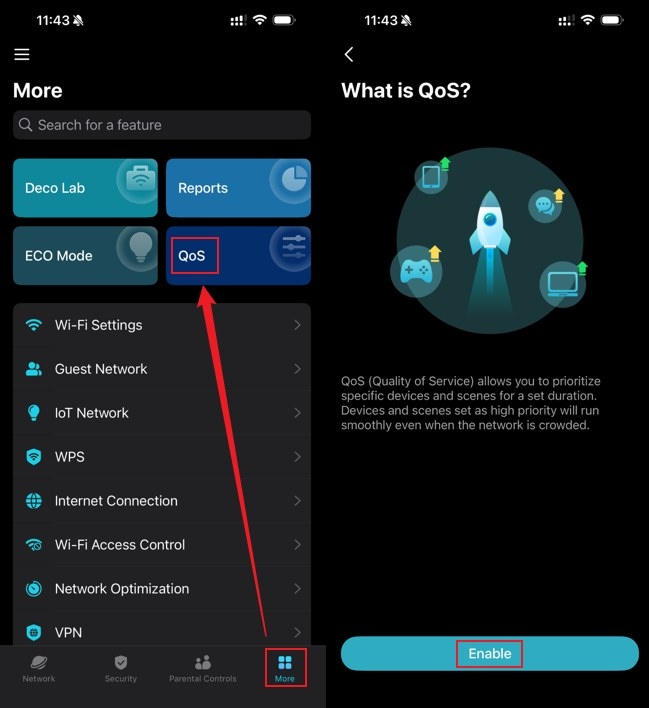
Configure Device and Activity Priorities with TP-Link Deco QoS
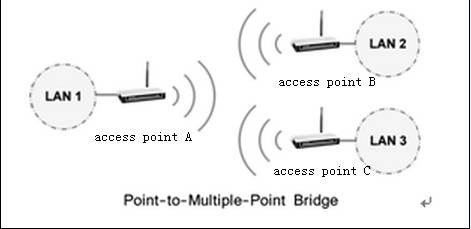
Set Up an Access Point for Point-to-Multipoint Bridging
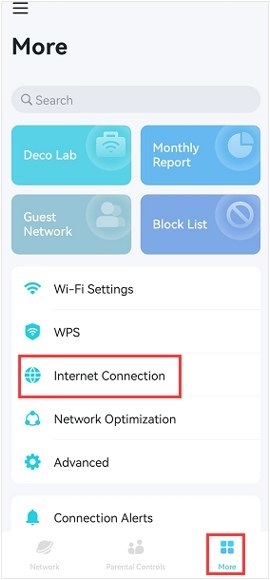
Troubleshooting Port Forwarding on TP-Link Routers and Deco
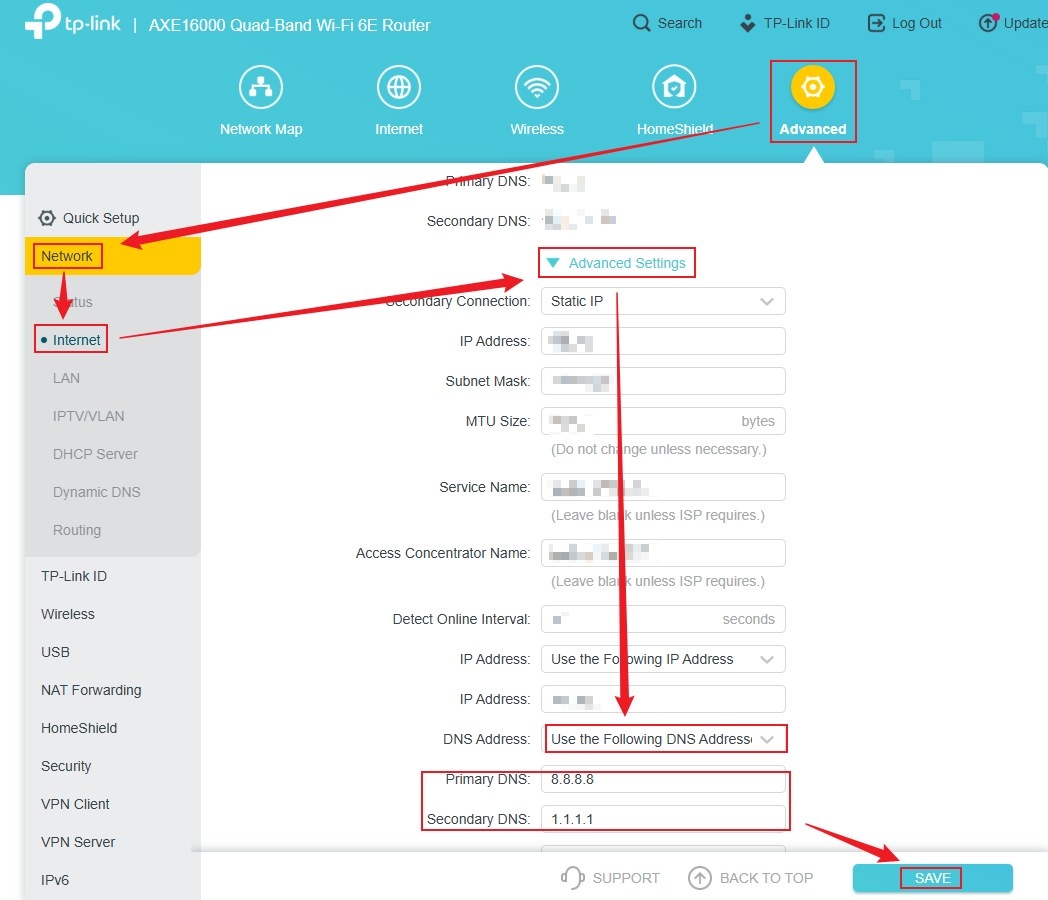
Changing DNS Servers on TP-Link Wireless and DSL Modem Routers
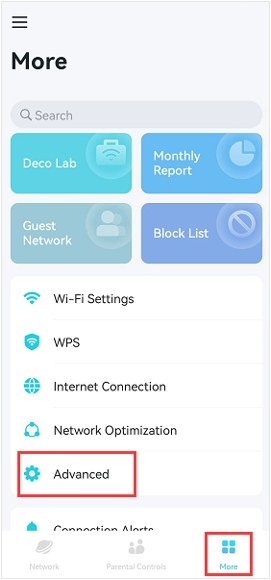
Give Devices a Fixed IP with Deco Address Reservation
Stay ahead of the story
Get one weekly email with the best of RouterSetup Desk.

