
Set Up an Access Point for Point-to-Multipoint Bridging
Configure Access Point A as a multipoint bridge and Access Points B and C as point-to-point bridges back to A. The setup includes unique LAN addresses, wireless bridge settings, WEP security, and a reboot.
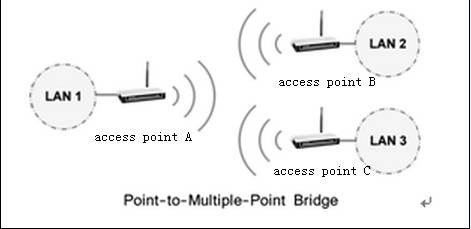
How the bridge connects your LANs
Bridge mode connects two or more wireless access points (APs) to join separate LANs. Some bridges support only one point-to-point connection; others can connect to several APs through point-to-multipoint bridging.
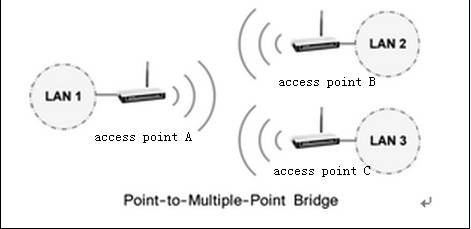
For this topology, set Access Point A to Point to Multi-Point Bridge mode and link it to Access Points B and C. Configure both B and C in Point to Point Bridge mode, pointing back to A.
Configure the access points
Connect your computer to Access Point A. Open its Web-based Interface by entering 192.168.1.1 or 192.168.1.254 in a browser.
The LAN IP depends on the model; check the product’s bottom label. If sign-in fails, consult the login troubleshooting instructions.
Change the AP’s LAN IP to prevent an address conflict; refer to FAQ_173 for details if needed. Sign in again using the new address. Each AP on the network must have a different IP address.
Set Access Point A to Point to Multi-Point Bridge mode:
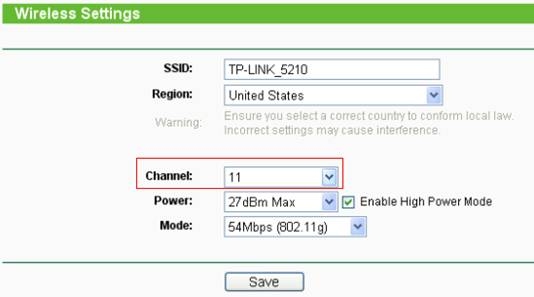
- From the left menu, open Wireless ->Basic Settings and set channel to a fixed value.
- Open Wireless -> Wireless Mode and choose Bridge (Point to Multi-Point).
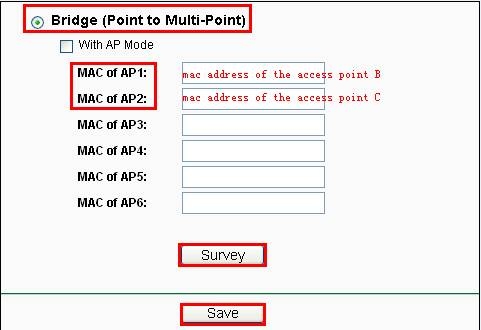
- Select Survey or Search to display available APs. Find the BSSID (MAC address) for Access Points B and C, note the Channel, and select Connect.
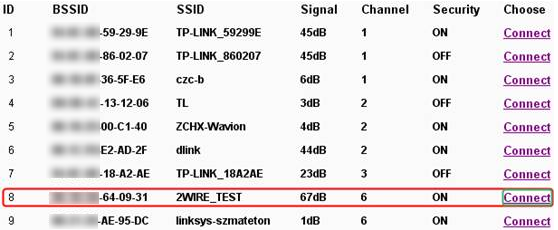
- Check that the MAC addresses for B and C appear in the MAC of AP boxes.
- Select Save.
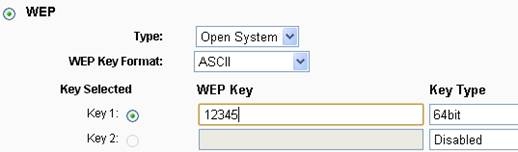
- Open Wireless-Security Settings and configure WEP security. Bridge mode supports only WEP.
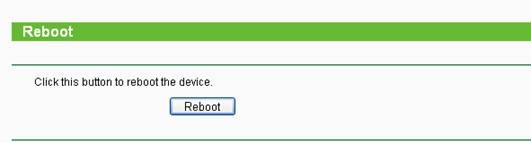
- Restart the AP through System Tools-Reboot.
- From the left menu, open Wireless ->Basic Settings and set channel to a fixed value.
Configure Access Points B and C in Point to Point Bridge mode, following FAQ 176.
Allow wireless clients with AP mode
Enable With AP Mode on the settings page if the access point should also accept wireless clients while bridging. Without this option, wireless clients cannot connect to the AP in Bridge mode.

For further function and configuration details, download your product’s manual from the Download Center.
Handpicked News
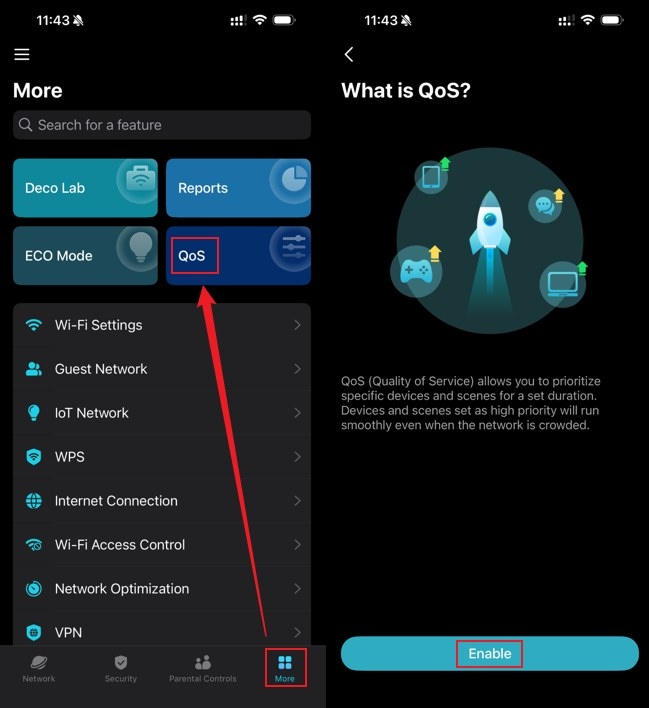
Configure Device and Activity Priorities with TP-Link Deco QoS
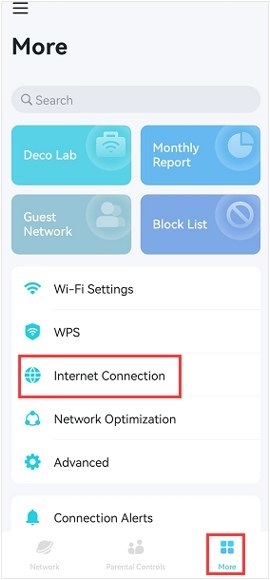
Troubleshooting Port Forwarding on TP-Link Routers and Deco
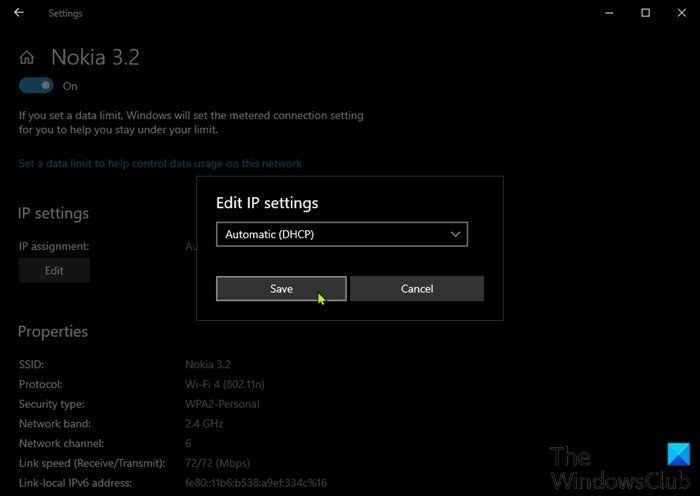
What to Try When Windows 11/10 Won’t Change Your Static IP or DNS
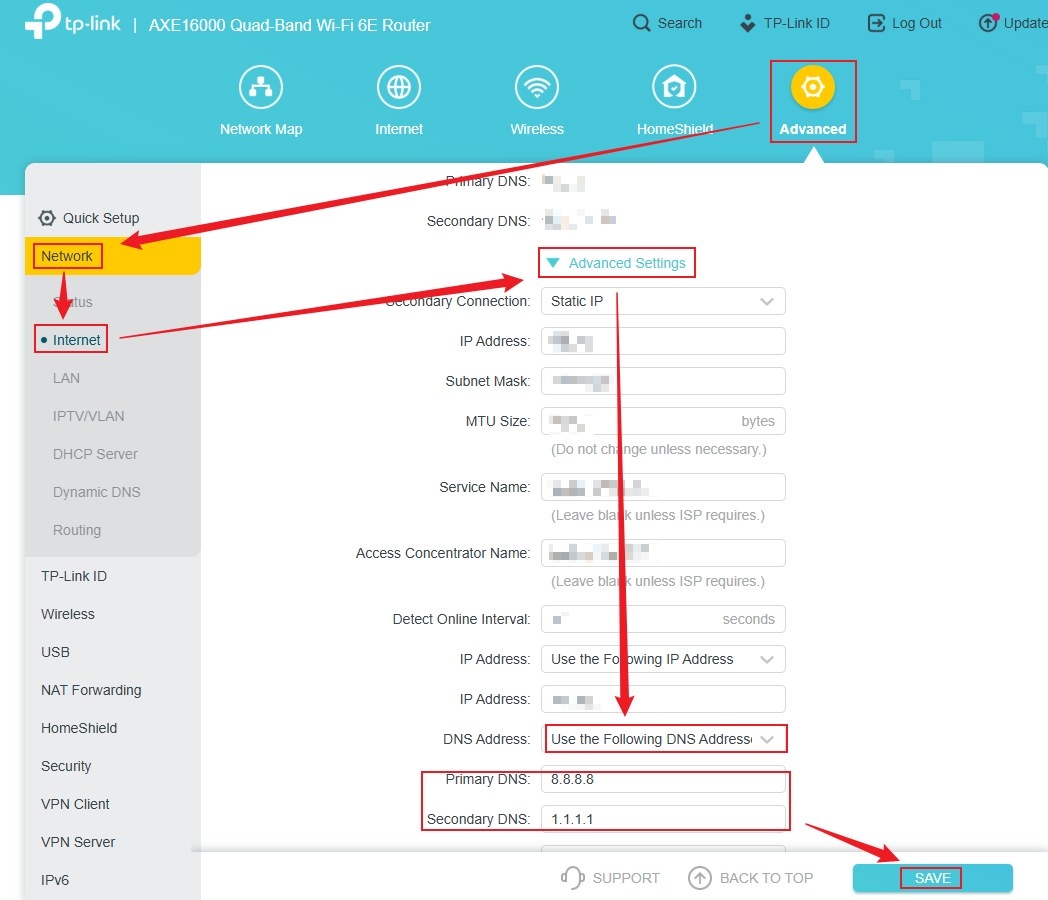
Changing DNS Servers on TP-Link Wireless and DSL Modem Routers
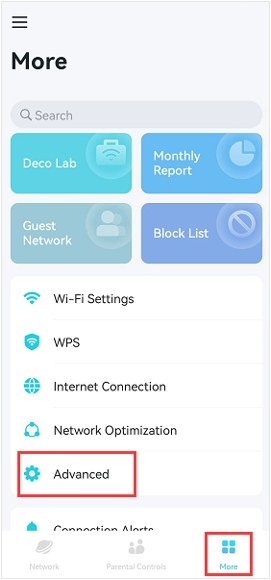
Give Devices a Fixed IP with Deco Address Reservation
Stay ahead of the story
Get one weekly email with the best of RouterSetup Desk.

