
Configure Device and Activity Priorities with TP-Link Deco QoS
Deco QoS prioritizes selected devices or activities when your network is busy. Follow the appropriate setup process for HomeShield or HomeCare models, including options for limiting priority duration.
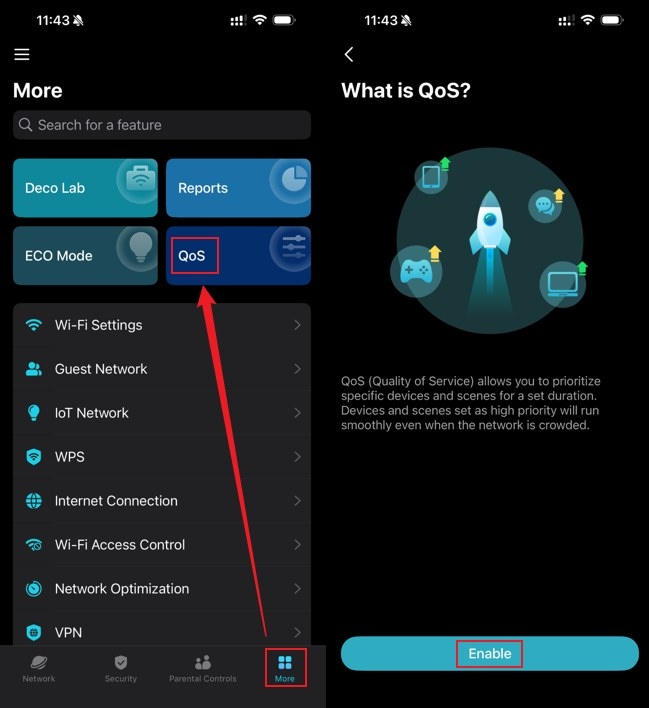
Quality of Service (QoS) allocates bandwidth priority to important devices and activities, such as gaming, video calls, and streaming. This helps keep those tasks running smoothly with less lag or buffering while other devices or downloads use the network.
Open More > QoS in the Deco app to access the settings. Available controls depend on your model: HomeShield offers activity-based Scene Acceleration and device-based Client Acceleration, while HomeCare prioritizes devices through High Priority Mode.
Configure QoS on HomeShield Models
The following instructions use Deco X50 as the example.
- In the Deco app, open More > QoS and turn on QoS.
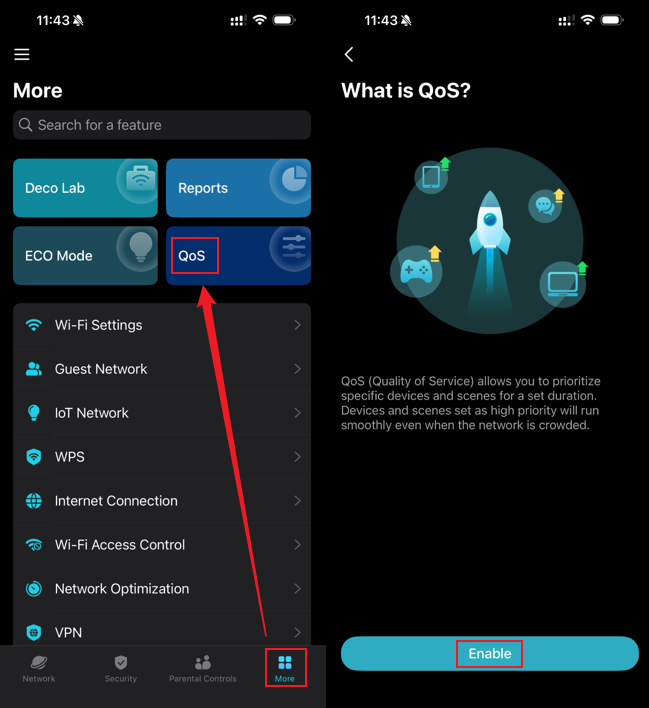
- Choose Scene Acceleration or Client Acceleration, then configure the priorities described below.
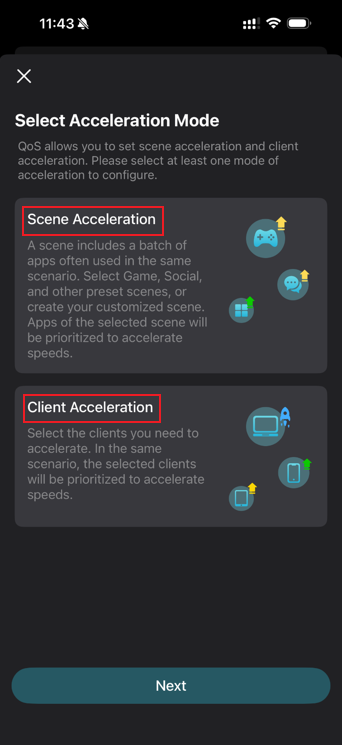
Prioritize activities with Scene Acceleration
- Open Scene Acceleration, supply your network’s Total Bandwidth, and select activities to prioritize, such as Gaming or Video Conferencing.
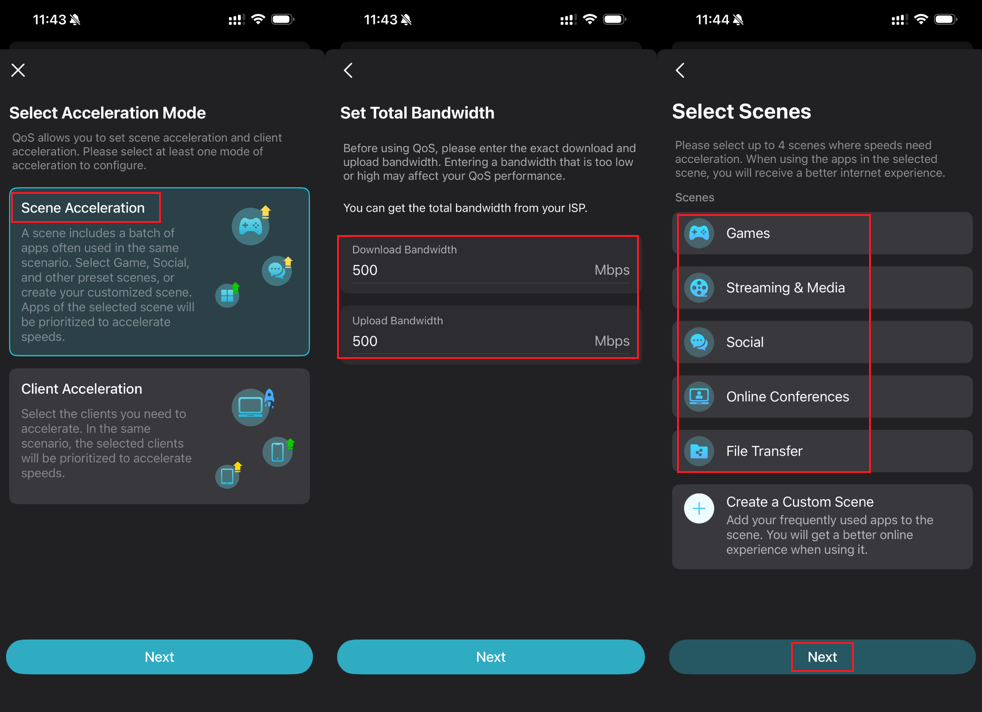
- For an activity beyond the built-in choices, tap Create a Custom Scene. Use select Apps to choose apps manually, assign an icon and name, then tap Done.
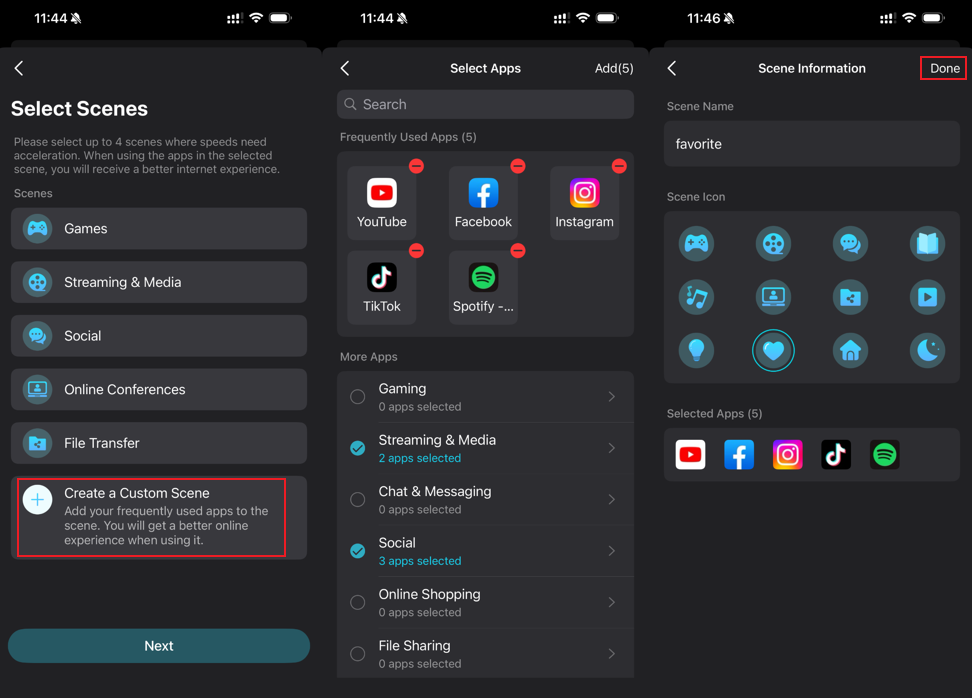
- Once you have selected the desired scenes, tap Complete to apply them.
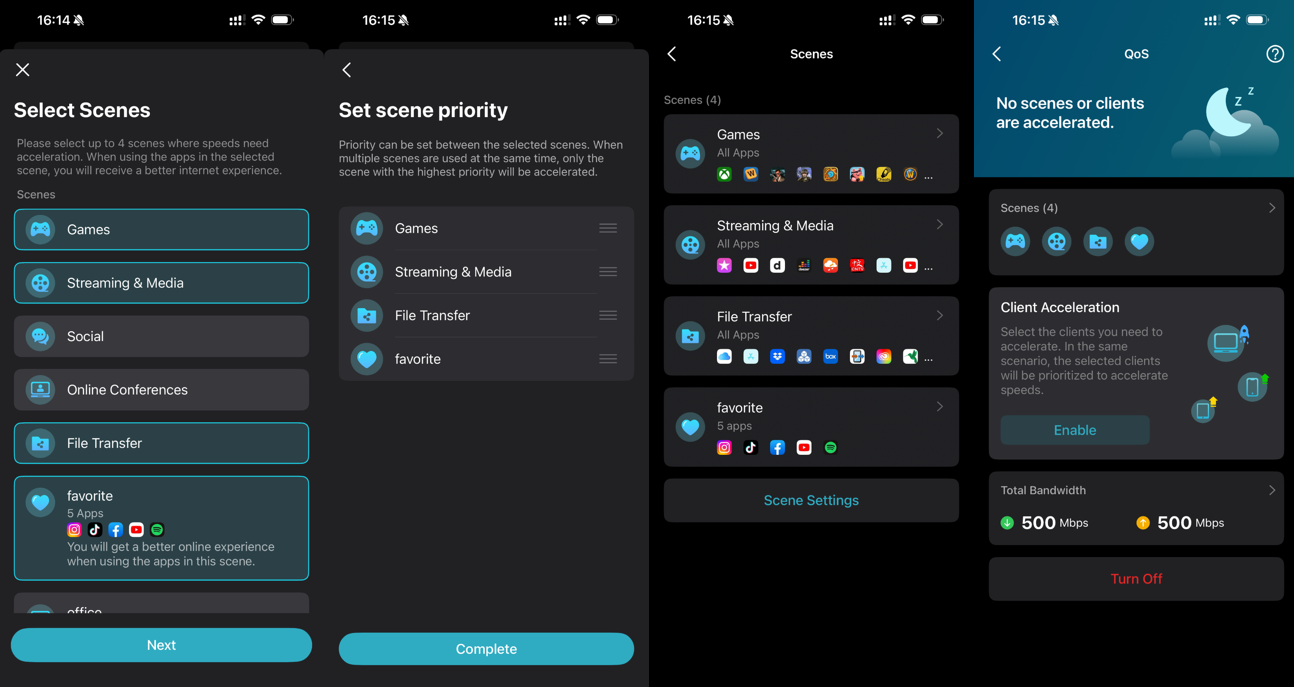
Prioritize devices with Client Acceleration
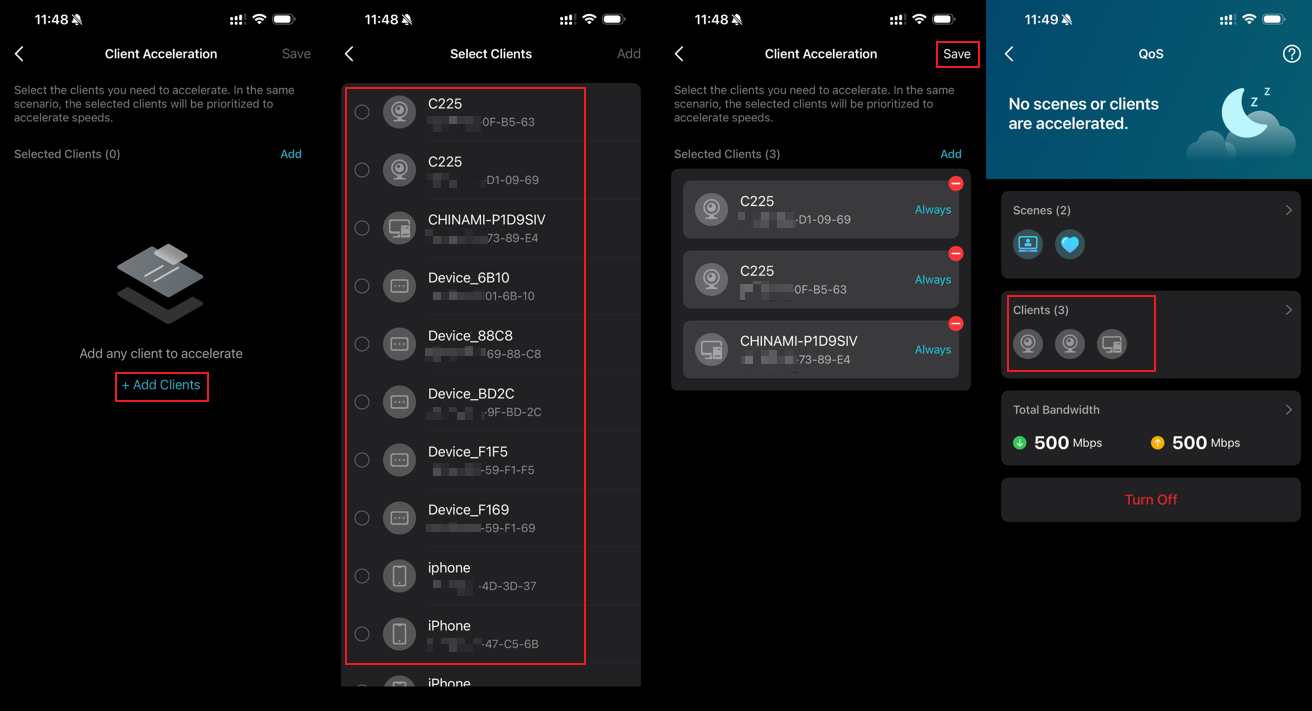
- Open Client Acceleration and tap Add Clients. Select the devices that should receive priority, then tap Save.
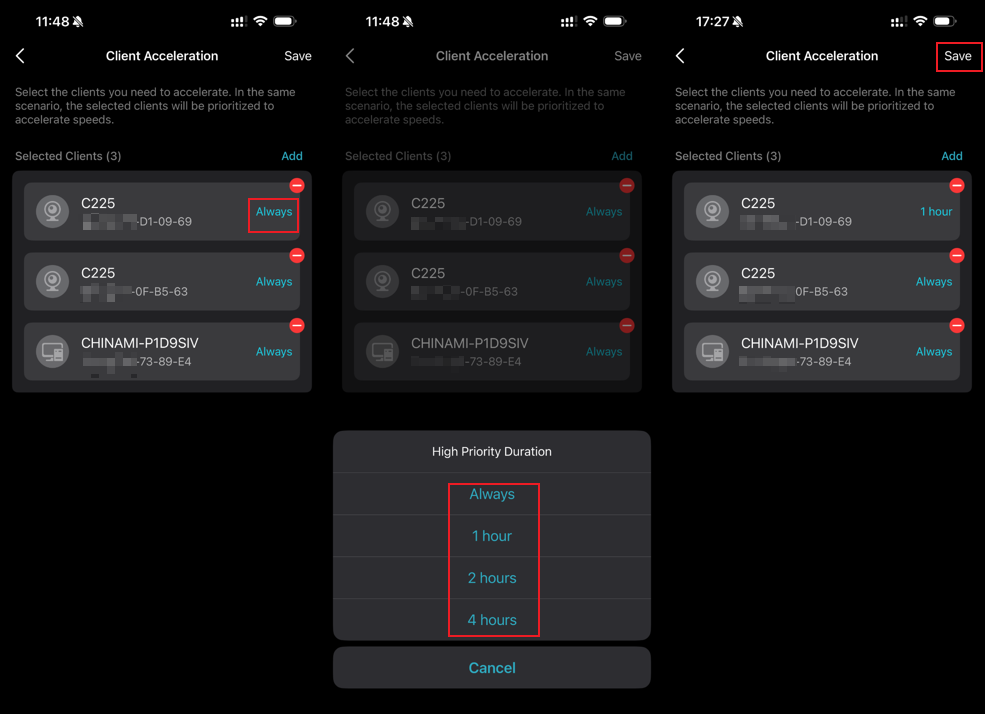
- To limit a device’s priority period, tap Always beside that device. Choose a duration and tap Save.
Configure QoS on HomeCare Models
These steps use Deco M5 as the example.
- Launch the Deco app, open More > QoS, and select Enable QoS.
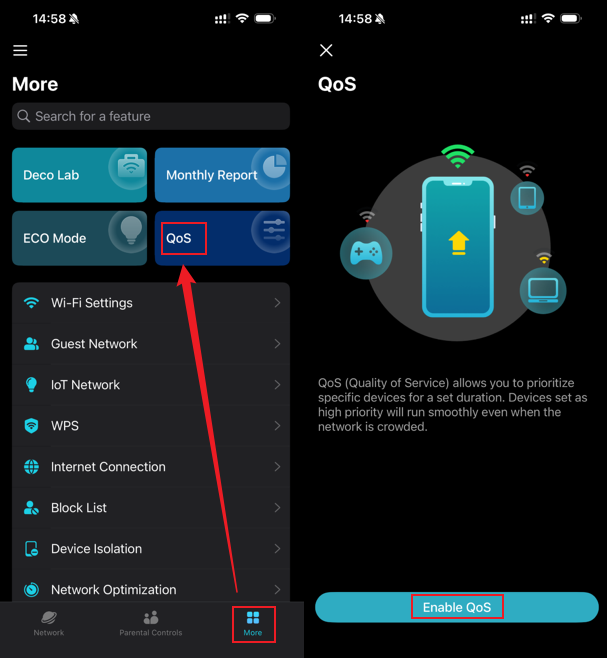
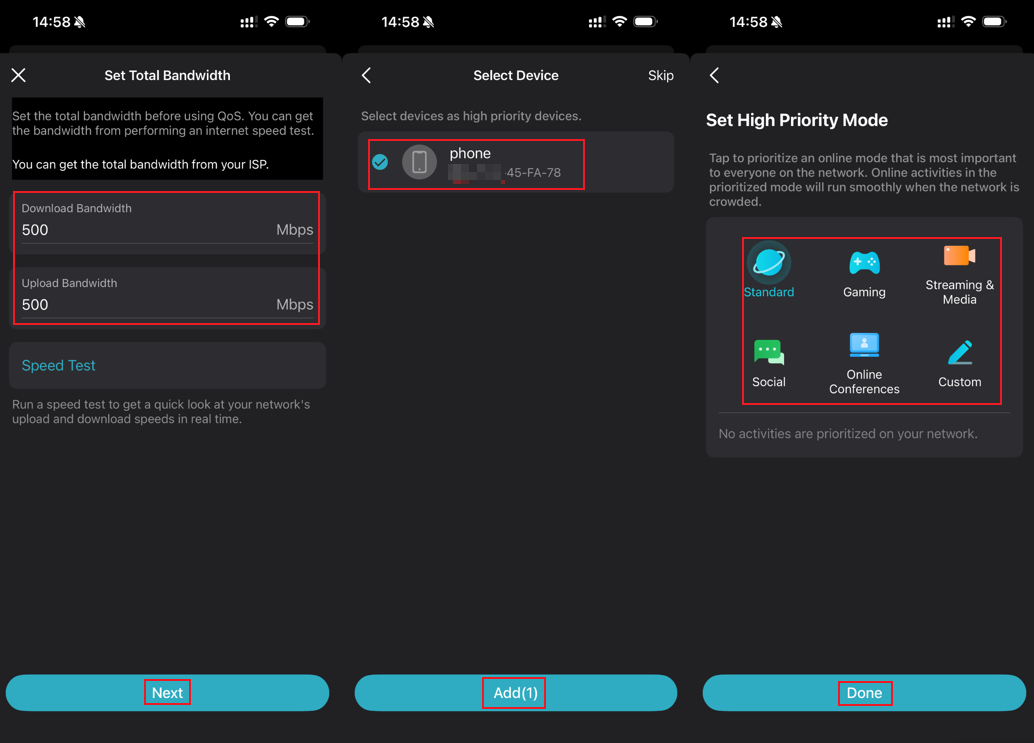
- Enter Total Bandwidth and select Next. Choose the client devices to prioritize and select Add. Select a High Priority Mode, then confirm with Done.
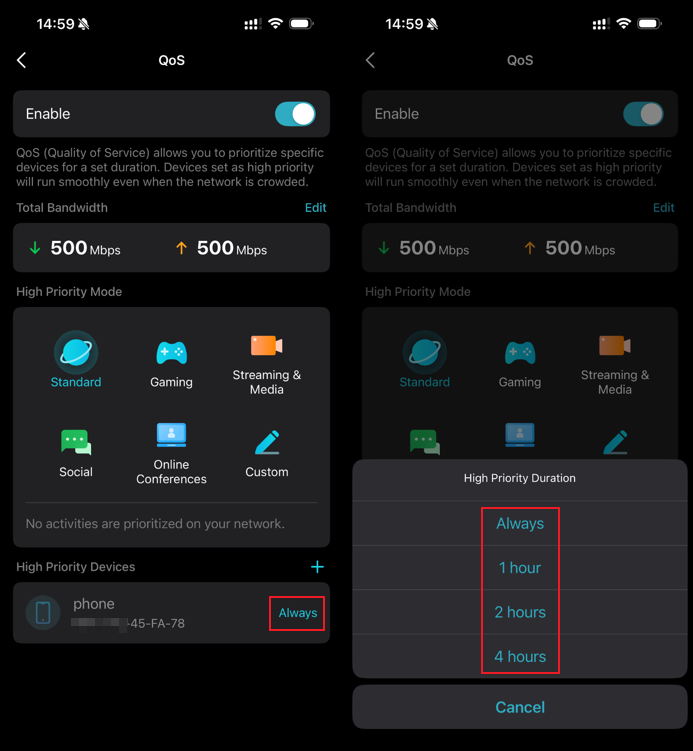
- To adjust a device’s priority duration, select Always beside it and choose a time limit from the menu.
For further configuration details, find your product’s manual in the Download Center.
Handpicked News
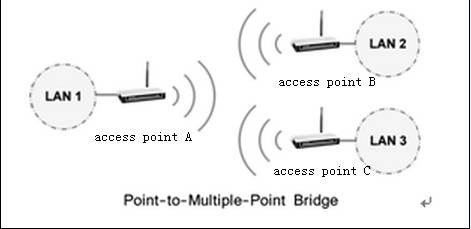
Set Up an Access Point for Point-to-Multipoint Bridging
Troubleshooting Port Forwarding on TP-Link Routers and Deco
What to Try When Windows 11/10 Won’t Change Your Static IP or DNS
Changing DNS Servers on TP-Link Wireless and DSL Modem Routers
Give Devices a Fixed IP with Deco Address Reservation
Stay ahead of the story
Get one weekly email with the best of RouterSetup Desk.

